

外掛說明
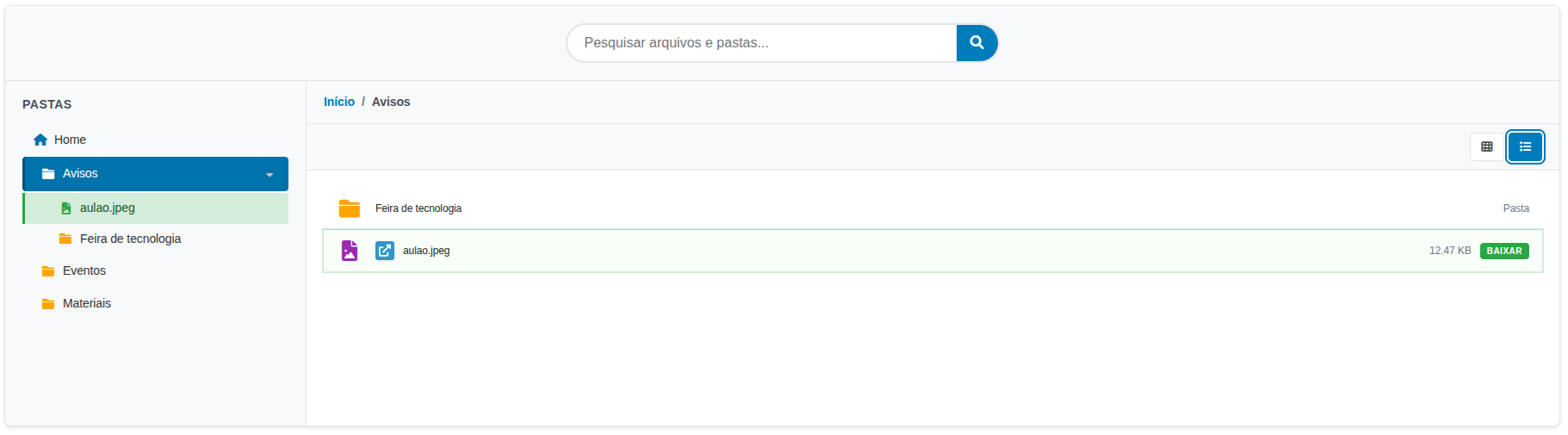
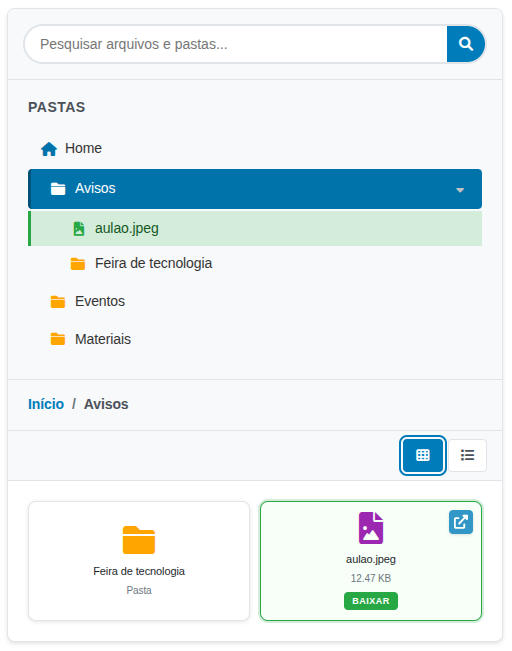
Link Nacional File Browser lets you create and manage a complete hierarchical file system within WordPress. It provides an admin interface to organize files into folders and a shortcode to display the file browser on the frontend.
Key Features:
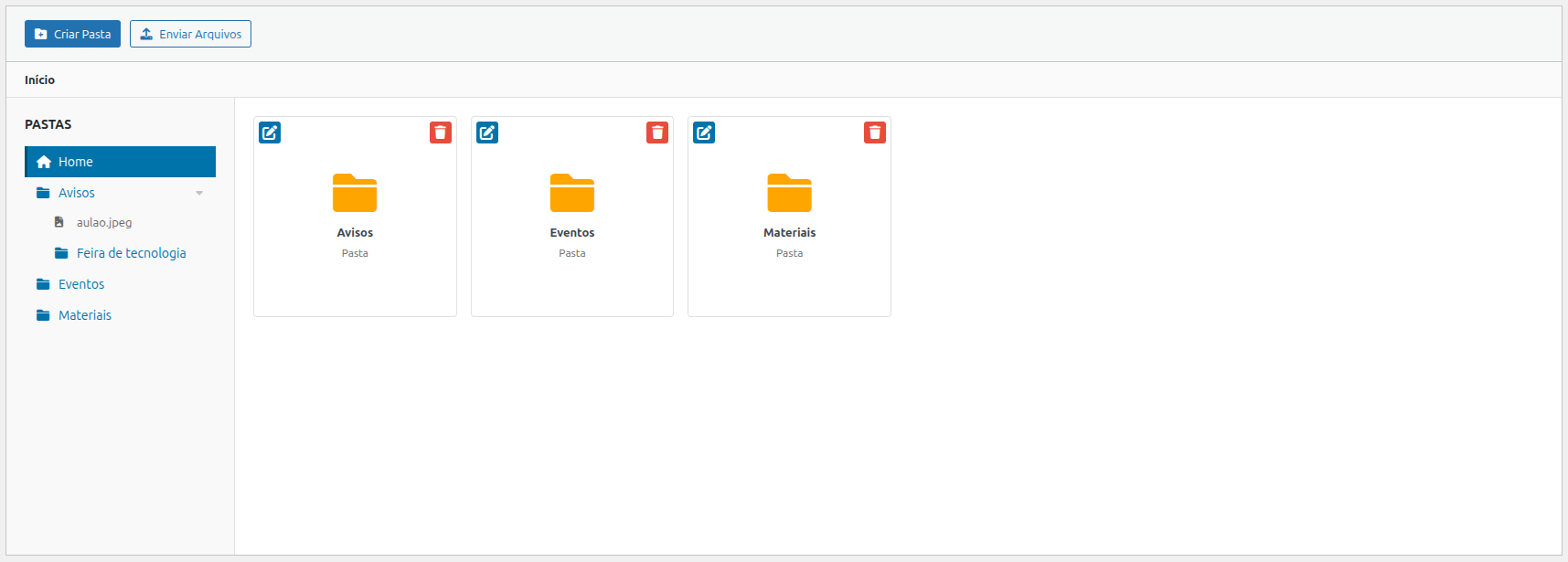
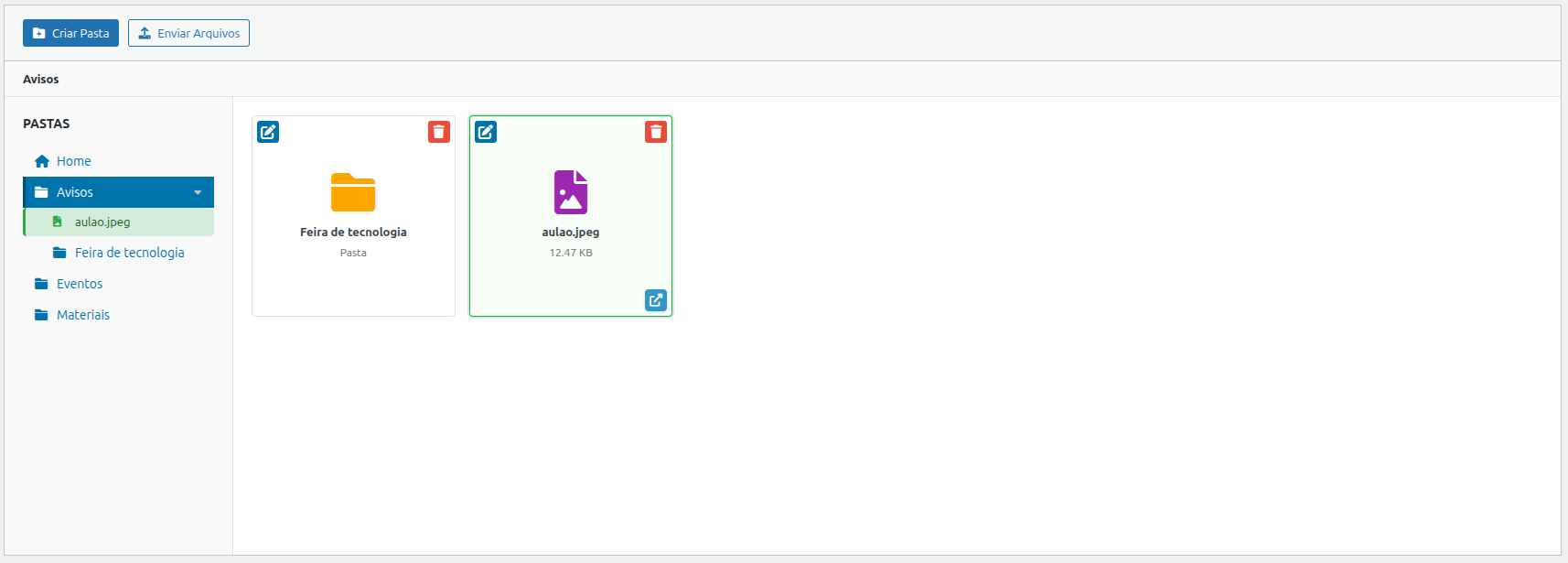
- Hierarchical Folder System — Create nested folders organized like a file explorer
- Multiple File Uploads — Support for PDF, Word, Excel, PowerPoint, images, and more
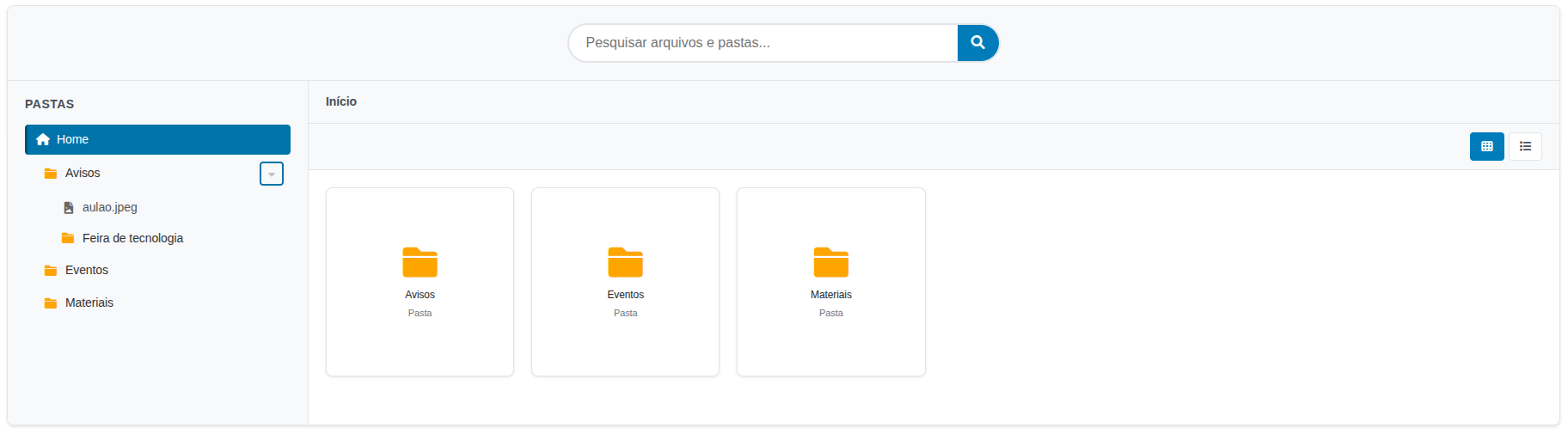
- Search Interface — Quick file and folder search on the frontend
- Responsive Design — Grid or list layout, adaptable to mobile devices
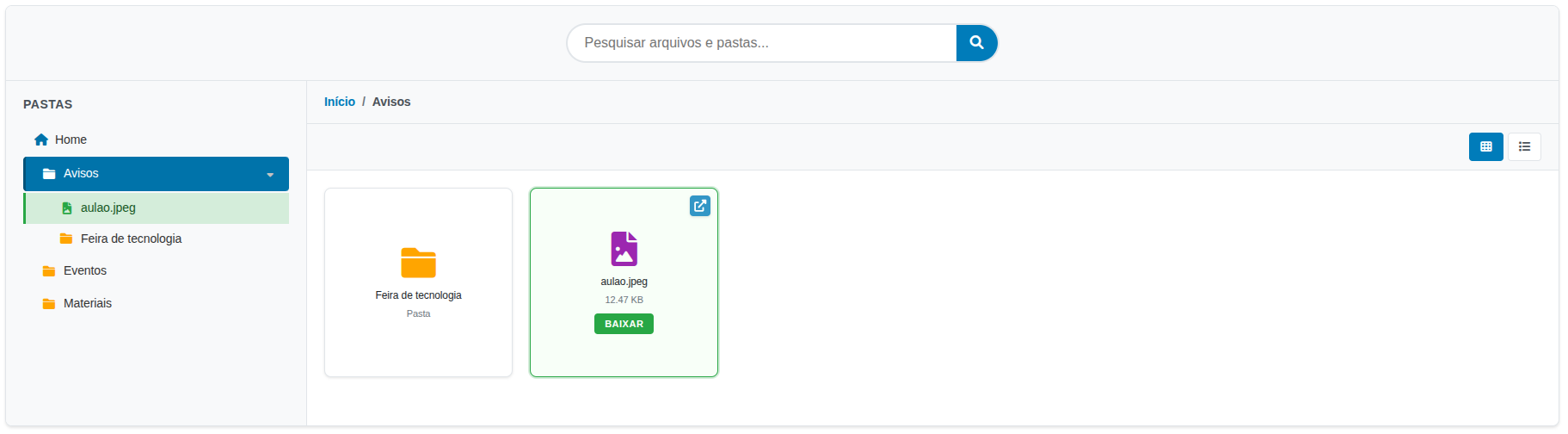
- Breadcrumb Navigation — Intuitive folder browsing
- Flexible Shortcode — Multiple configuration options
Supported File Types:
* Documents: PDF, DOC, DOCX, XLS, XLSX, PPT, PPTX, TXT
* Images: JPG, JPEG, PNG, GIF
Technical Details
Database Structure:
* {prefix}linknacional_filebrowser_folders — Stores folder information
* {prefix}linknacional_filebrowser_files — Stores file information
Upload Directory:
Files are stored in /wp-content/uploads/linknacional-filebrowser/
Available Hooks:
* linknacional_filebrowser_before_upload — Fires before a file upload
* linknacional_filebrowser_after_upload — Fires after a file upload
* linknacional_filebrowser_before_delete — Fires before a file deletion
Support
For technical support, contact us:
* Email: contato@linknacional.com
* Website: https://www.linknacional.com.br
License
This plugin is licensed under GPL v2 or later.
螢幕擷圖
安裝方式
- Upload the plugin to the
/wp-content/plugins/linknacional-file-browser/directory - Activate the plugin through the ‘Plugins’ menu in WordPress
- The plugin will automatically create the required database tables
- Go to ‘File Browser’ in the admin menu to start organizing your files
常見問題集
-
How do I use the shortcode?
-
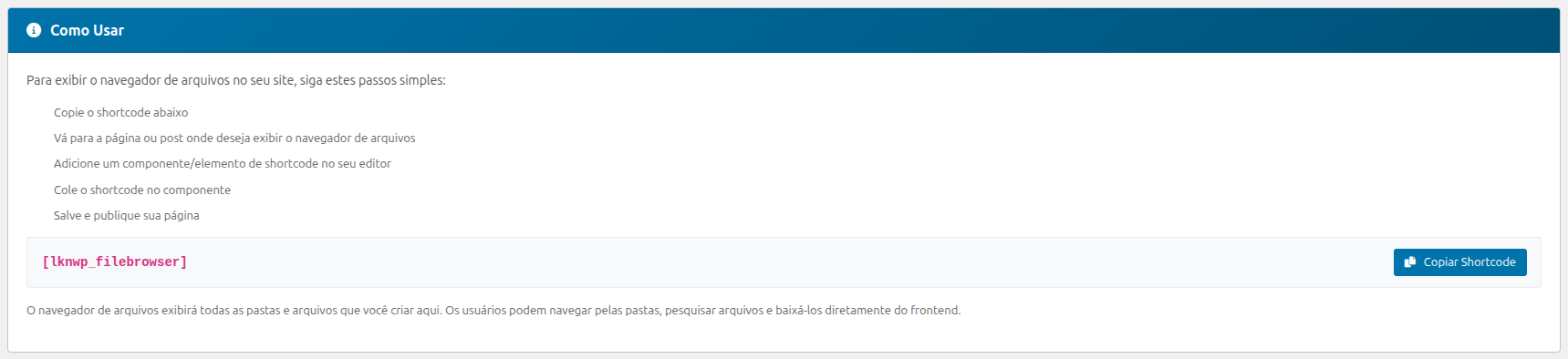
The plugin includes an instructions panel in the admin area with practical examples and copy buttons.
Go to ‘File Browser’ in the admin menu for complete usage instructions.
Basic usage:
[linkn_filebrowser]Specific folder:
[linkn_filebrowser folder_id=”1″]Different layout:
[linkn_filebrowser layout=”list”]Available layouts: grid (default) and list
-
Where do I find usage instructions?
-
The plugin admin panel includes an instructions block with:
* Shortcode examples
* Copy shortcode buttons
* Usage tips
* Feature guide -
How do I organize files into folders?
-
- Go to ‘File Browser’ in the admin menu
- Read the instructions at the top of the page
- Click ‘Create Folder’ to create a new folder
- Navigate to the desired folder and click ‘Upload Files’
- Select multiple files for simultaneous upload
-
How can users access the files?
-
Users can:
* Navigate through folders by clicking on them
* Use the search bar to find specific files
* Download files by clicking on them
* Switch between grid and list views -
Is the plugin responsive?
-
Yes! The plugin is built with responsive design and automatically adapts to tablets and smartphones.
使用者評論
這個外掛目前沒有任何使用者評論。
參與者及開發者

變更記錄
1.0.2 – 2026-08-03
- Bug: LiteSpeed adaptation loading.
1.0.1 – 2026-08-03
- Bug: Font Awesome script loading.
1.0.0 – 2026-07-27
- Initial release
- Complete hierarchical folder system
- Multiple file uploads
- Search interface
- Flexible shortcode with multiple options
- Responsive design
- Support for multiple file types