
外掛說明
ZubFeat AI Featured Image generates a featured image inside the WordPress editor from the post title — or the title plus a short excerpt. Use your own OpenAI or OpenRouter API key. If you have no key yet, a local branded template is available as a basic non-AI fallback (not a substitute for AI artwork).
The plugin does not charge you, and your key is not sent to us. Paste a key, pick a quality level, and click Generate. The image is saved as the normal WordPress featured image, so your theme — and page builders such as Elementor — display it.
What you can do
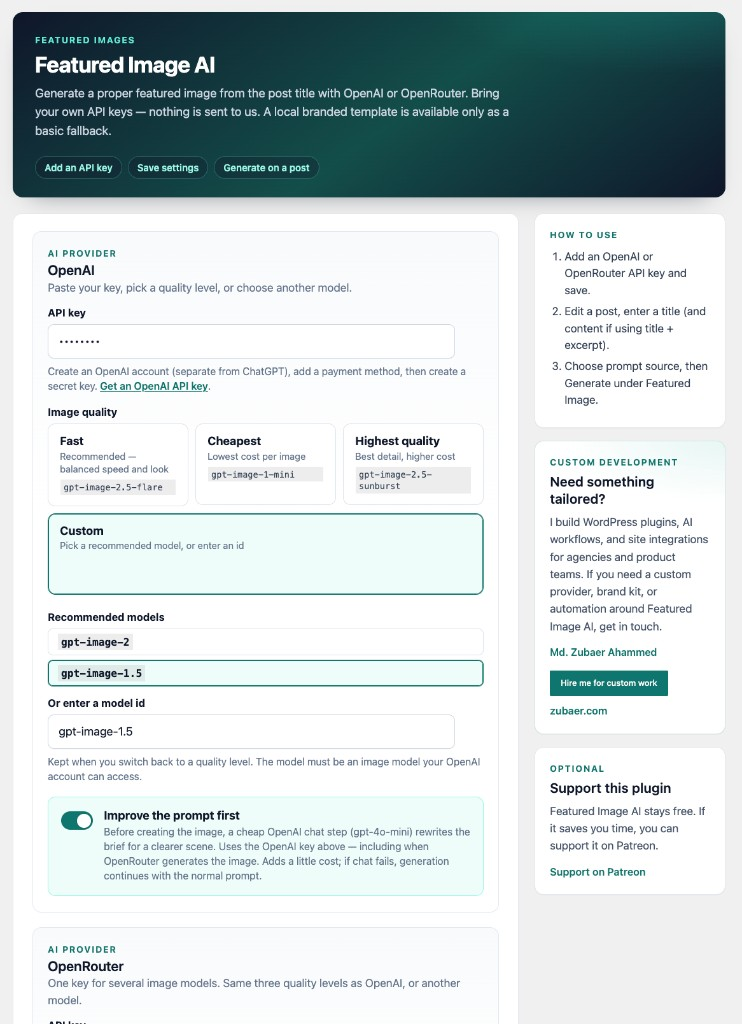
- OpenAI Images — Fast, Cheapest, or Highest quality, or pick another image model.
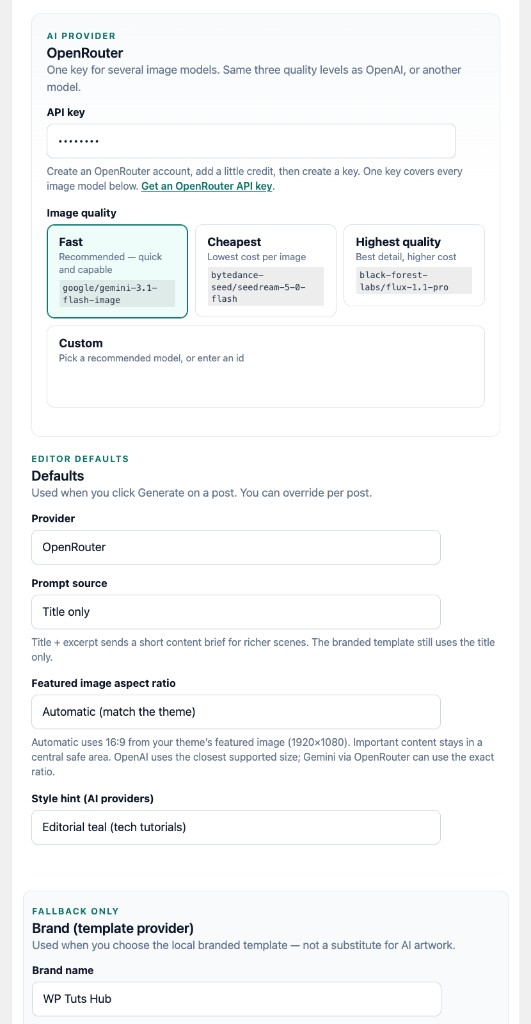
- OpenRouter — one key for several image models, with the same quality levels.
- Your own model id — kept when you switch back to a quality level.
- Aspect ratio — Automatic matches the theme’s featured image, or choose 16:9, 3:2, 4:3, 1:1, or 2:3.
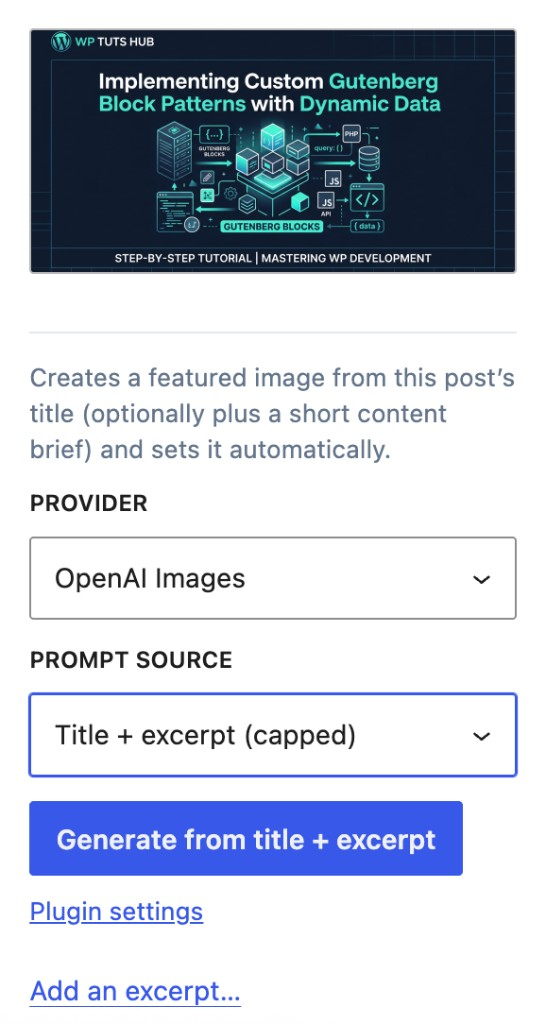
- Prompt — title only, or title plus a short excerpt.
- Branded template — a local title card if you have no API key yet. It is a basic fallback, not AI artwork.
How to get an API key
You pay OpenAI or OpenRouter for each image. A typical image costs a small amount of credit on your account.
OpenAI
- Create an account at platform.openai.com. This is separate from ChatGPT.
- Add a payment method under Billing.
- Open API keys and create a secret key. It starts with
sk-. - Paste it under Settings ZubFeat AI Featured Image OpenAI and save.
OpenRouter
- Create an account at openrouter.ai.
- Add a little credit.
- Open API keys and create a key.
- Paste it under Settings ZubFeat AI Featured Image OpenRouter and save. One key covers every image model in the list.
How to use
- Install and activate ZubFeat AI Featured Image.
- Go to Settings ZubFeat AI Featured Image and paste a key.
- Edit a post and enter a title.
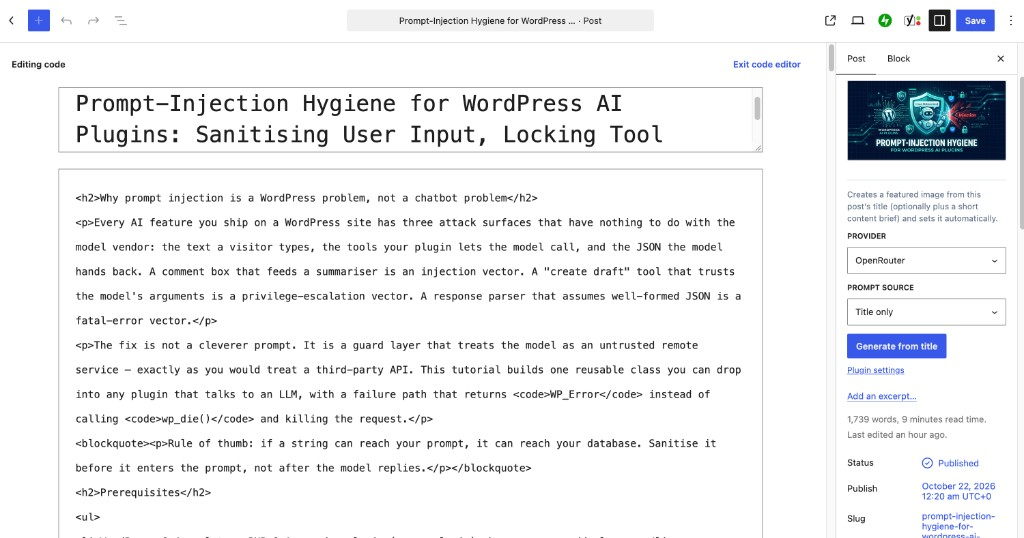
- In the sidebar, under Featured Image, click Generate from title.
The same control is in the classic editor sidebar.
Page builders
Generate from the WordPress post screen (Edit), not from inside the Elementor canvas. Elementor then shows the featured image WordPress stored. Elementor’s own Generate with Elementor AI is a separate product and uses Elementor’s AI plan.
Privacy
API keys are stored in your WordPress database. Requests go from your server to OpenAI or OpenRouter only when you generate (or optionally improve a prompt). This plugin does not track visitors, does not send analytics, and does not proxy keys or content through the author’s servers.
External services
This plugin can connect to third-party AI services when you choose them and click Generate (or enable “Improve the prompt first”). You bring your own API keys. Nothing is sent until you take those actions.
OpenAI — Used to generate featured images via the Images API, and optionally to rewrite the image brief via the Chat Completions API when “Improve the prompt first” is enabled. When you generate, your site sends the image prompt (derived from the post title and optional excerpt), model/size settings, and your OpenAI API key from your server to OpenAI. Terms of use: https://openai.com/policies/terms-of-use — Privacy policy: https://openai.com/policies/privacy-policy
OpenRouter — Used as an alternative image provider (one key for several image models). When you generate with OpenRouter selected, your site sends the image prompt, model/aspect settings, and your OpenRouter API key from your server to OpenRouter. Terms of service: https://openrouter.ai/terms — Privacy policy: https://openrouter.ai/privacy
The branded template fallback runs entirely on your WordPress site and does not call these services.
螢幕擷圖

安裝方式
From WordPress.org
- In wp-admin go to Plugins Add New, search for ZubFeat AI Featured Image, then Install and Activate.
- Open Settings ZubFeat AI Featured Image.
- Paste an OpenAI key or an OpenRouter key and save.
- Edit a post, enter a title, and click Generate from title.
Manual zip upload
- Download the plugin zip.
- Go to Plugins Add New Upload Plugin, choose the zip, then Install Now and Activate.
- Follow steps 2–4 above.
常見問題集
-
Do I need an API key?
-
Yes, for AI images. OpenAI and OpenRouter each need a key from your own account. The branded template runs with no key, and it is only a simple title card.
-
How do I get an OpenAI API key?
-
Create an account at platform.openai.com — this is not the ChatGPT app. Add a payment method, then create a secret key on the API keys page. Paste that key into Settings ZubFeat AI Featured Image OpenAI.
-
How do I get an OpenRouter API key?
-
Create an account at openrouter.ai, add credit, then create a key on the API keys page. Paste it into Settings ZubFeat AI Featured Image OpenRouter. One key works for every recommended image model.
-
What does this cost?
-
The plugin is free. You pay OpenAI or OpenRouter for the images you generate. Fast and Cheapest use less credit than Highest quality. Improving the prompt first adds a small chat request on your OpenAI key.
-
Will the title be written correctly inside the image?
-
Image models often misspell text. The picture is composed from the title; it is not a guarantee that the words appear in the artwork. Use the branded template when you need the title set in readable type.
-
Does this work with the block editor and the classic editor?
-
Yes. In the block editor the controls sit under Featured Image. In the classic editor they are a ZubFeat AI Featured Image box in the sidebar. Both save the standard WordPress featured image.
-
Open the post with Edit (the WordPress editor) and generate there. Then open Elementor. The featured image is already set. Elementor also has its own Generate with Elementor AI, which is separate from this plugin.
-
Which image size will I get?
-
Automatic follows the theme’s featured image when the theme declares one, and skips a small square thumbnail such as 200×200. You can override it with 16:9, 3:2, 4:3, 1:1, or 2:3. OpenAI uses the closest size it supports. OpenRouter can use the exact ratio.
-
Can I support the plugin?
-
Yes, if you want to. There is an optional Patreon link on the settings page. Donating does not unlock anything. The plugin stays free either way.
使用者評論
這個外掛目前沒有任何使用者評論。
參與者及開發者

變更記錄
1.1.0
- Rename to ZubFeat AI Featured Image (slug zubfeat-ai) for a distinctive WordPress.org listing name.
- Prefix declarations, options, hooks, and assets with zubfeat_ / ZUBFEAT_ / ZubFeat\ (four characters or longer).
- Document OpenAI and OpenRouter under External services (what is sent, when, terms, and privacy links).
- MediaAttacher loads only wp-admin/includes/image.php for wp_generate_attachment_metadata().
- Migrate settings and capabilities from the former fia_ / featured-image-ai identifiers.
1.0.31
- Plugin Check: rename PHP namespace to FIA so the short fia_ prefix is not displaced by a longer namespace-derived prefix.
- Plugin Check: avoid false-positive “direct AI provider” warnings on BYO OpenAI/OpenRouter image endpoints.
1.0.30
- Plugin Check: drop manual load_plugin_textdomain() (WordPress.org loads translations by slug).
- Sanitize the AJAX excerpt field with sanitize_textarea_field().
1.0.29
- Branded template: bundled Noto Sans Bengali plus mixed-script drawing (Latin DejaVu + Bengali Noto) so titles like “Exam Results – পরীক্ষার ফলাফল” render without tofu boxes.
1.0.28
- Settings screen hides admin notices from other plugins; only ZubFeat AI Featured Image and Settings API messages remain.
1.0.27
- Clearer listing copy: title or title plus excerpt, use your own OpenAI/OpenRouter key, non-AI template fallback.
- Refreshed WordPress.org icons, banners, and screenshots (including Title + excerpt in the editor).
1.0.26
- WordPress.org listing assets: extra screenshots for settings, editor, and front end.
1.0.25
- Settings explain how to create an OpenAI or OpenRouter API key, with a link for each.
- Optional Patreon link on the settings page. The plugin stays free either way.
1.0.24
- Space above Prompt source in the post editor matches the gap above Provider.
1.0.23
- Automatic aspect ratio uses the theme’s featured image size. A small square thumbnail, such as 200×200, is no longer treated as the featured image.
1.0.22
- Recommended models under Custom sit on one line. The friendly name is left off when it only repeats the model id.
1.0.21
- Custom on OpenAI and OpenRouter lists recommended image models and still accepts a model id of your own.
1.0.20
- Aspect ratio can follow the theme automatically, from the Post Featured Image block or the theme’s featured-image size. The five presets stay available as an override.
1.0.19
- Space under the Image quality label matches the API key label.
1.0.18
- Quality cards show the model id. OpenRouter adds Custom, which keeps your own image model id when you switch back to a preset.
1.0.17
- Settings field polish: provider panels, quality cards, clearer “Improve the prompt first” toggle.
1.0.16
- OpenAI and OpenRouter: three quality presets only (Fast / Cheapest / Highest quality). Legacy and custom model ids are remapped.
1.0.15
- Remap retired gpt-image-1 default to GPT Image 2.5 Flare; clearer OpenAI model errors.
1.0.14
- Selectable featured-image aspect ratios (16:9, 3:2, 4:3, 1:1, 2:3) with safe-centre composition.
1.0.13
- Settings layout polish: AI keys first, getting-started steps, hire/contact aside.
1.0.12
- Hook for Pro provider failover after quota/billing failures (
zubfeat_provider_fallback_result).
1.0.11
- Prompt source: title only or title + capped excerpt (~600 characters) for richer AI images.
1.0.10
- OpenAI presets: GPT Image 1 Mini, 1.5, 2, 2.5 Flare/Sunburst; remove retired DALL·E options.
1.0.9
- OpenRouter presets: Gemini 3.1 Flash Image/Lite, Seedream 5.0 Flash; drop non-image free-tier entry.
1.0.8
- OpenAI and OpenRouter model selects with popular presets plus custom model ids.
1.0.7
- Accent colour uses the WordPress colour picker.
1.0.6
- Warn when no AI API key is set; branded template treated as a basic fallback.
1.0.5
- Branded template output raised to 3840×2160.
1.0.4
- Branded template output raised to 2560×1440 (was 1920×1080).
1.0.3
- Remove “Generated from post title” footer; sharper pill labels via 2× render.
1.0.2
- Sharper branded template: bundled fonts, 1920×1080 PNG (fixes blurry bitmap fallback).
1.0.1
- Show generate controls directly under Featured Image in the block editor.
1.0.0
- Initial release: template, OpenAI Images, OpenRouter, post editor generate UI.