

外掛說明
Skuvelo keeps your on-hand inventory accurate across every channel you sell on, forecasts what to reorder before you stock out, and syncs orders and fulfillment back to WooCommerce.
Connecting WooCommerce to Skuvelo normally means generating a REST API key yourself under WooCommerce Settings Advanced REST API, then copying the Consumer Key and Consumer Secret into Skuvelo by hand. This plugin removes that step: click Connect in your Skuvelo dashboard, approve the connection here in your WordPress admin, and Skuvelo does the rest. No key ever leaves your browser as clipboard text.
What this plugin does, exactly:
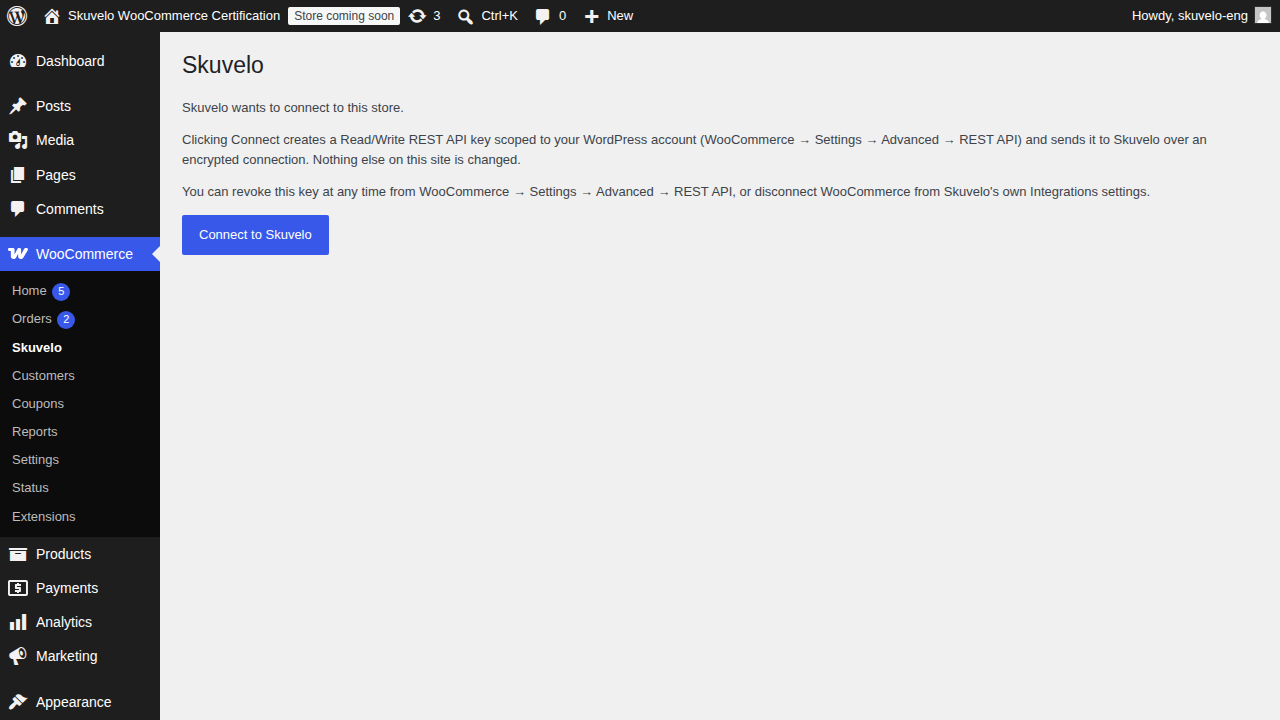
- Adds a single admin screen (WooCommerce Skuvelo) that only does anything when you arrive from a Skuvelo “Connect via plugin” link.
- On your explicit confirmation, generates a Read/Write WooCommerce REST API key scoped to your own WordPress account — the same kind of key, with the same permissions, you would create by hand on the REST API settings screen.
- Sends that key to Skuvelo once, over HTTPS, so it can verify and store it.
- Does nothing else. No background sync, no scheduled tasks, no data collection beyond that one exchange.
You are always in control. The key this plugin creates shows up in WooCommerce Settings Advanced REST API exactly like any key you created by hand, and you can revoke it from there at any time. Disconnecting WooCommerce from Skuvelo’s own Integrations settings does not require this plugin to be active.
Prefer not to install a plugin? You never have to — Skuvelo’s manual “paste your own key” connect flow works with or without this plugin installed.
Requirements
- WooCommerce, active on this site.
- An HTTPS store URL. Skuvelo does not connect a store over plain HTTP.
- A Skuvelo account. Sign up if you don’t have one yet.
螢幕擷圖
安裝方式
- Install and activate this plugin (via Plugins Add New Search, or upload the zip under Plugins Add New Upload Plugin).
- In Skuvelo, go to Settings Integrations Connect WooCommerce and choose Connect via plugin.
- You’ll be redirected into this site’s wp-admin. Review the permission summary and click Connect to Skuvelo.
- That’s it — you’re returned to Skuvelo, connected.
常見問題集
-
Does this plugin sync my products or orders itself?
-
No. All syncing happens from Skuvelo’s side, over the REST API key this plugin hands it. This plugin’s only job is generating and delivering that key; it has no background processes of its own.
-
What WooCommerce permission does the generated key have?
-
Read/Write. Skuvelo only exercises write access for two things — pushing a fulfillment note to an order, and (only once you explicitly enable it in Skuvelo) pushing inventory quantity updates. Both stay off until you turn them on.
-
Can I revoke access?
-
Yes, any time, without touching this plugin: WooCommerce Settings Advanced REST API, revoke the key labeled “Skuvelo”. You can also disconnect from Skuvelo’s own Settings Integrations page.
-
What happens if I deactivate or delete this plugin?
-
Deactivating or deleting it does not affect an existing Skuvelo connection or revoke its key — see the previous answer for how to do that deliberately. This plugin holds no data of its own to clean up.
-
Does this plugin phone home on its own?
-
Only once, and only when you click Connect to Skuvelo on a link that originated from your own Skuvelo dashboard. It makes exactly one outbound request — the key exchange described above — to Skuvelo’s own API. No analytics, telemetry, or usage tracking of any kind. See Skuvelo’s privacy policy for how the resulting connection’s data is handled once you’re connected.
使用者評論
這個外掛目前沒有任何使用者評論。
參與者及開發者

變更記錄
1.0.0
- Initial release: one-click connect for the Skuvelo WooCommerce integration.