

外掛說明
ScanForge Database Security is a WordPress database scanner. It finds malware and spam hidden in your posts, options, post meta, user meta and comments, cleans the malware, and lets you review the spam and delete only what you choose.
Use it as a malware cleaner and a spam cleaner for your database: it handles malware removal for infected rows, and gives you a separate page to review and remove spam.
Many hacks live only in the database: a redirect script inside an option, a spam link inside an old post, an obfuscated payload in a custom field. A file scanner cannot see these. ScanForge looks at the database tables directly, and it runs entirely on your server with no external service.
Who is this plugin for?
- Site owners whose file scanner says “clean” but whose site still redirects visitors or shows spam
- Freelancers and agencies cleaning up hacked client sites
- Hosting support staff who need a quick database check after a hack
- Anyone who wants to check the database after removing a nulled plugin or theme
What does it work with?
- WordPress 5.0 or newer and PHP 7.4 or newer
- The five tables attackers use most: wp_posts, wp_options, wp_postmeta, wp_usermeta and wp_comments
- Custom table prefixes, because it uses the WordPress database object
- Data stored by other plugins in those tables. It is designed to avoid false alarms on plugins such as Wordfence, Elementor and Gravity Forms
- It scans the database only. To audit plugin and theme files, use the companion plugin ScanForge File & Theme Security
Two pages, two jobs
Malware Scanner finds known malware signatures and cleans them.
- Traffic hijacking scripts and nulled plugin backdoors
- Obfuscated PHP injections that use encoded or compressed payloads
- Dynamic script injections and tracking cookie injections
- Known malware loader functions
- Shell command execution attempts and known web shell signatures
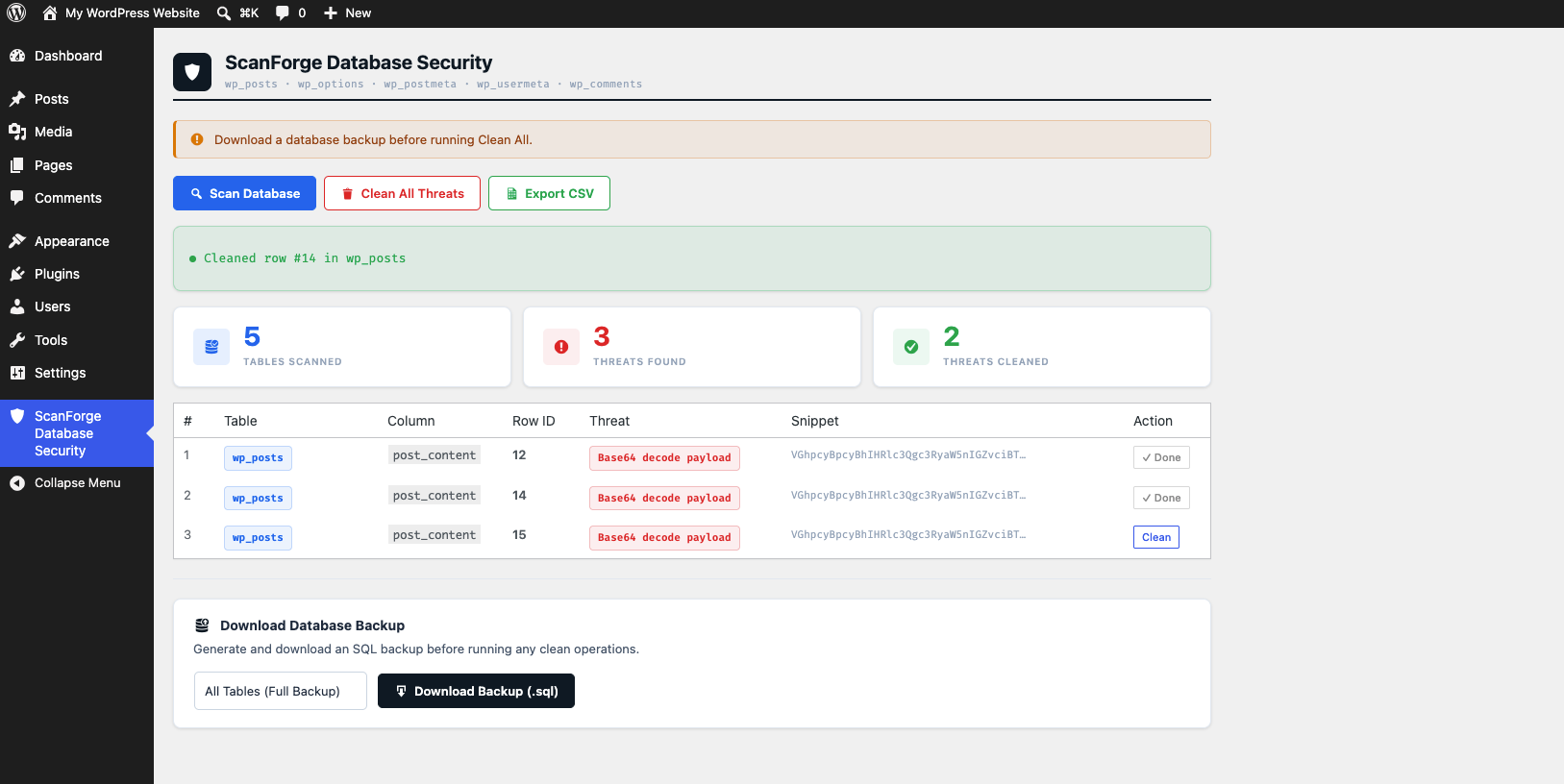
- Clean one row or all threats at once
- Download a database backup (.sql) before cleaning
- Export the results as a CSV report
Spam Detection lists spam content so you can decide what to do with it.
- Gambling and casino spam
- Pharmaceutical spam
- Adult spam
- Cryptocurrency spam
- Financial and loan spam
- SEO and backlink spam
- Nothing is deleted automatically. Delete one item, or tick several and use Delete Selected
- Posts go to the Trash so you can restore them. Comments, post meta, user meta and options are deleted permanently
- Core WordPress options, such as the site URL, can never be deleted from this page
- Each item is checked again just before deletion, and skipped if it no longer matches
How to use it
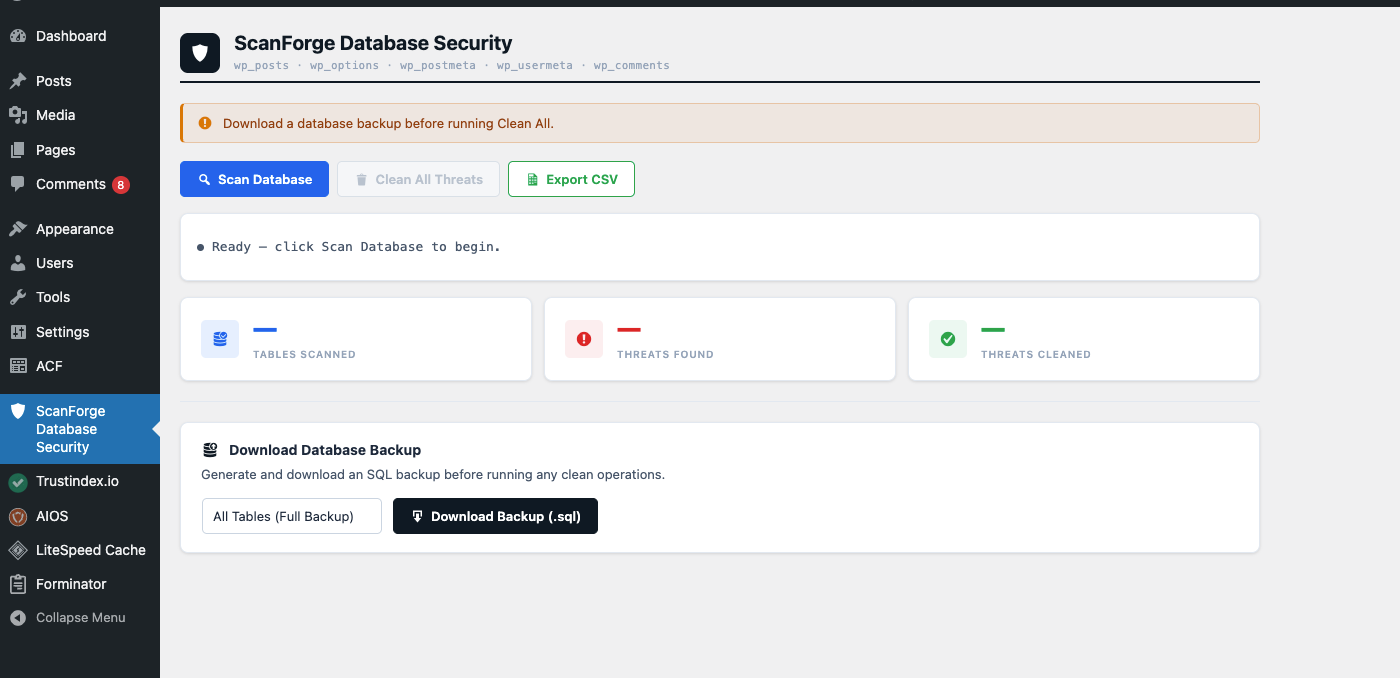
- Go to ScanForge Database Security > Malware Scanner
- Click Download Backup to save a copy of your database
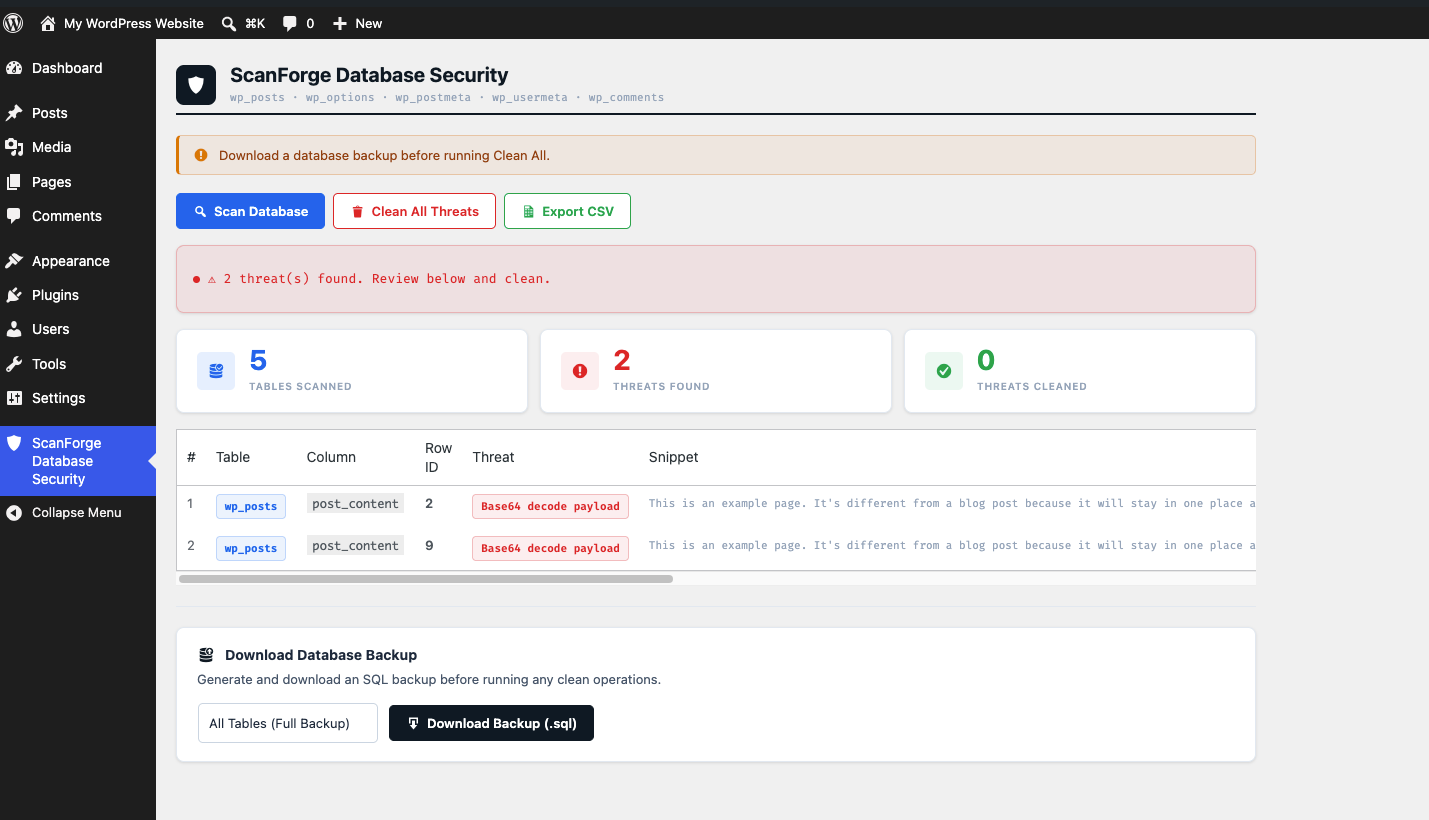
- Click Scan Database and review the threats found
- Click Clean All Threats, or clean rows one at a time
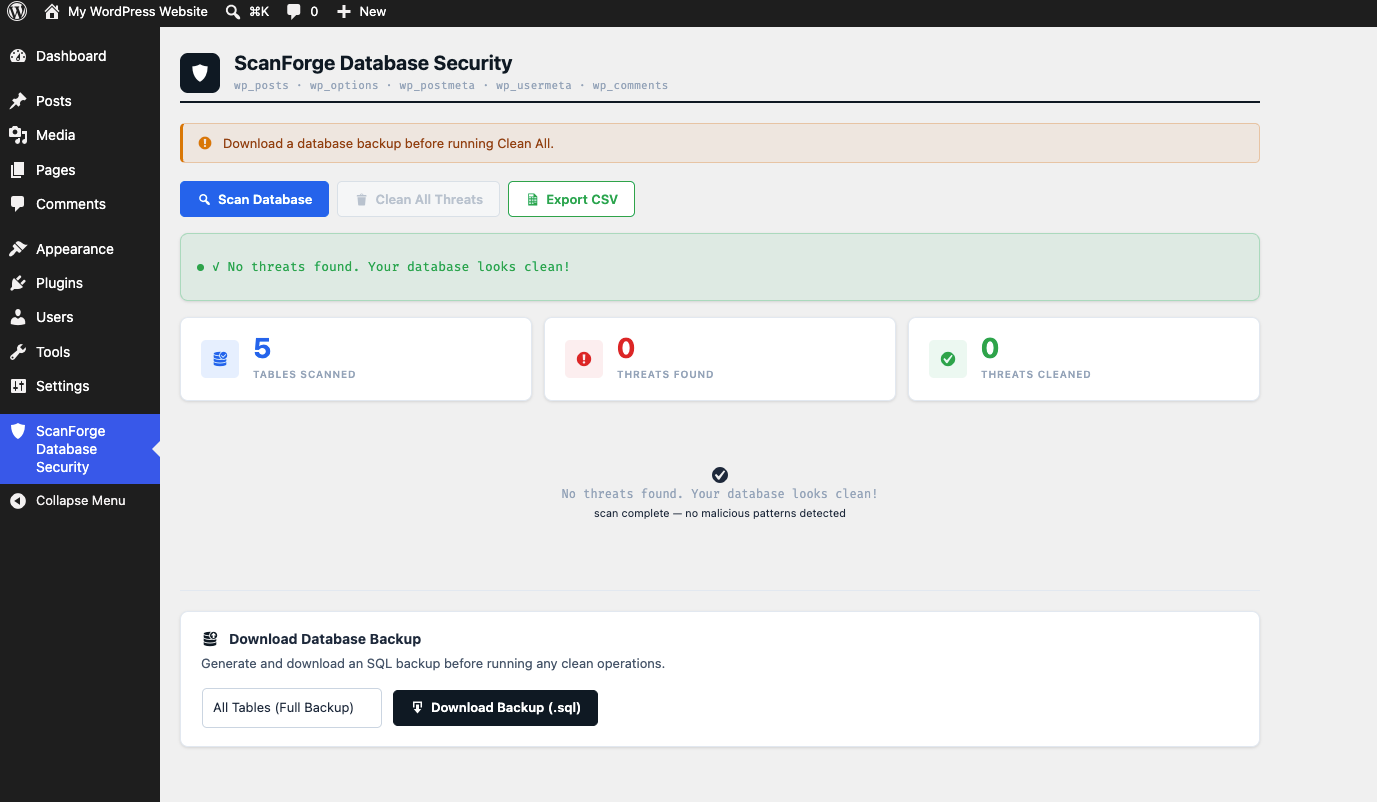
- Scan again to confirm the database is clean
- Open ScanForge Database Security > Spam Detection, click Scan for Spam, and delete only the items you want removed
Want to scan files too?
ScanForge Database Security checks the database only. Our second plugin, ScanForge File & Theme Security, audits your plugin and theme files. It compares them with the official WordPress.org checksums and looks for web shells and modified code.
A card at the bottom of the Malware Scanner and Spam Detection pages shows whether it is installed:
- Not installed: click Install & Activate to download it from WordPress.org and turn it on
- Installed but off: click Activate
- Already active: the card turns green, says “Full stack covered”, and shows an Open File Scanner button that takes you straight to it
Nothing is installed unless an administrator clicks the button.
Important Notice
This plugin helps clean database infections but it does NOT prevent reinfection if the source of the malware (such as nulled or pirated plugins or themes) is still installed. Remove nulled software and keep everything updated to fix the cause.
Spam detection is based on phrases, so a genuine post that uses one of them (for example an article about online casinos) can be listed. Always review each result and take a backup first.
External Services
The scanner itself runs entirely on your server and sends no data anywhere.
The only external connection is optional and happens when you click Install & Activate on the companion plugin card:
- Service: the WordPress.org plugin directory (api.wordpress.org and downloads.wordpress.org)
- Purpose: to find and download the ScanForge File & Theme Security plugin
- Data sent: the plugin slug, using the standard WordPress plugin installer. No personal data, visitor data, site content or credentials are sent
- Privacy policy: https://wordpress.org/about/privacy/
螢幕擷圖
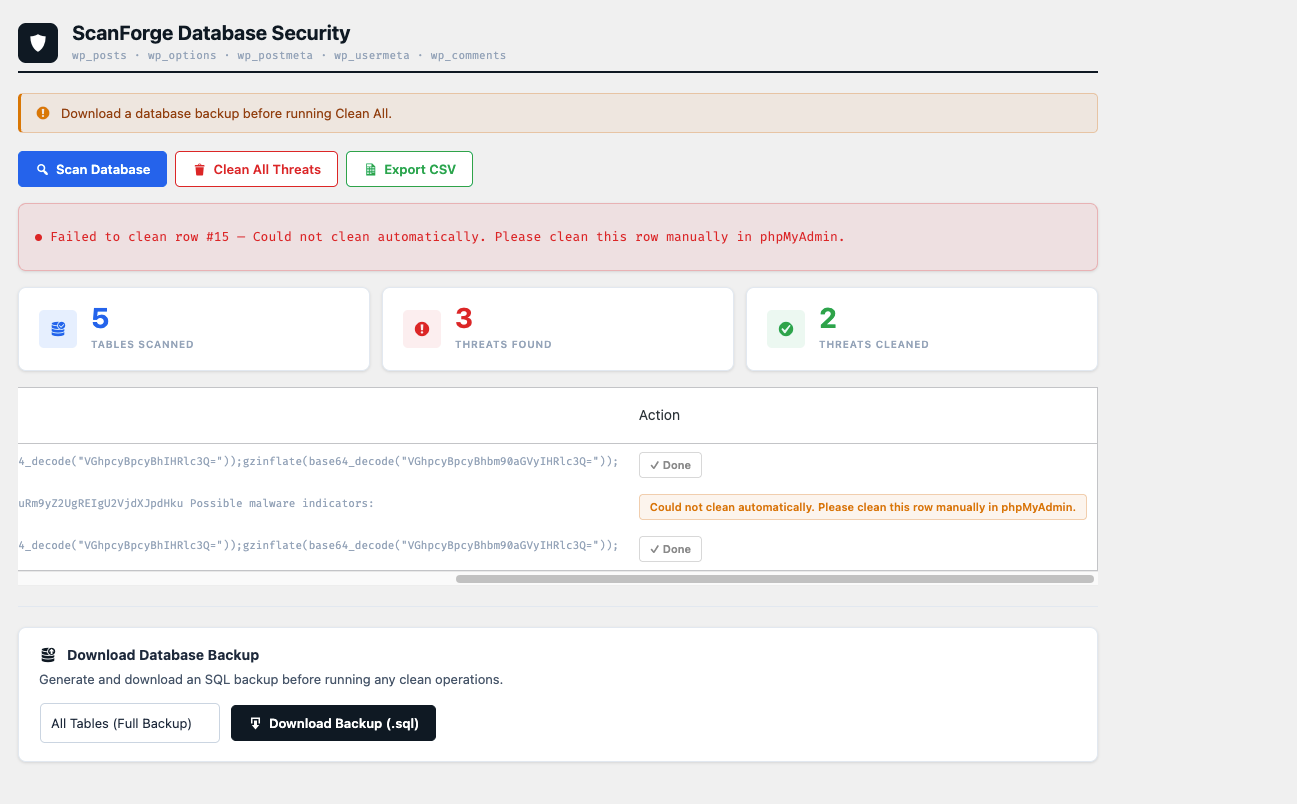

安裝方式
Automatic Installation
- Go to Plugins > Add New in your WordPress admin
- Search for “ScanForge Database Security”
- Click Install Now and then Activate
Manual Installation
- Download the plugin zip file
- Go to Plugins > Add New > Upload Plugin
- Upload the zip file and click Install Now
- Click Activate Plugin
After Installation
Navigate to ScanForge Database Security in your WordPress admin sidebar to start scanning.
常見問題集
-
My file scanner says my site is clean, but visitors still see spam or redirects. Can this plugin help?
-
Yes, that is the main reason it exists. Malware is often stored in the database, where file scanners do not look. Run the Malware Scanner to check posts, options, meta and comments, then use Spam Detection for spam content.
-
Does it scan my plugin and theme files?
-
No. This plugin scans the database only. To audit plugin and theme files, use our second plugin, ScanForge File & Theme Security. You can install and activate it from the card at the bottom of this plugin’s pages. It compares your files with the official WordPress.org checksums and looks for web shells and modified code.
-
Does this plugin install other plugins by itself?
-
No. Nothing is installed automatically. The plugin only installs ScanForge File & Theme Security if you click the Install & Activate button, and it downloads it from the official WordPress.org plugin directory. You need permission to install plugins, and the button is hidden on sites where plugin installation is turned off.
-
Which tables does it scan?
-
wp_posts, wp_options, wp_postmeta, wp_usermeta and wp_comments. It works with custom table prefixes.
-
Is it safe to use Clean All Threats?
-
Take a full database backup first. The plugin removes malicious script blocks while keeping your normal content, but a backup is always recommended. The plugin has a built-in Download Backup button.
-
Why can some threats not be cleaned automatically?
-
The cleaner only removes script blocks, injected PHP with encoded or compressed payloads, and lines containing known malware domains. Other threats are still reported, and the row is marked for manual removal, for example in phpMyAdmin.
-
What is the difference between the Malware Scanner and Spam Detection pages?
-
Malware is harmful code that should be cleaned. Spam is unwanted content that you may want to review first. They are on separate pages so spam never gets mixed into malware results.
-
Does the plugin delete spam automatically?
-
No. Spam is only listed. You choose what to delete, one item at a time or with Delete Selected.
-
Can I restore something I deleted from the Spam Detection page?
-
Posts are moved to the Trash, so you can restore them from Posts > Trash. Comments, post meta, user meta and options are deleted permanently, so take a backup before deleting.
-
Why was one of my normal posts listed as spam?
-
Spam detection looks for phrases such as “online casino”. A genuine article that uses one of these phrases can be listed. Review each result and only delete what is really spam.
-
Will this plugin stop my site from being hacked again?
-
No. It cleans existing infections. To prevent new ones, remove nulled or pirated plugins and themes, keep all software updated, and use a firewall plugin.
-
Does it send my data to an external service?
-
No. The scan runs entirely on your server and nothing is sent anywhere.
-
Can I export the results?
-
Yes. After a scan, use the export button to download a CSV file of all threats found.
-
What is the data/patterns.json file?
-
It holds the malware signatures and spam phrases the scanner looks for. If the file is missing or damaged, the plugin refuses to scan and shows an error, so it can never report a falsely clean database. Reinstall the plugin to restore it.
使用者評論

參與者及開發者

變更記錄
1.0.0
- Initial release
- Scan wp_posts, wp_options, wp_postmeta, wp_usermeta, wp_comments
- Detect 15+ malware patterns
- Clean individual rows or all threats
- Export CSV report
1.0.1
Added compatibility with PHP 7.0
1.0.2
Added single-table scanning functionality
Added “Scan All Tables” option for scanning the entire database
Improved scan performance and usability
1.0.3
- Added Wordfence compatibility.
- Added Elementor compatibility.
- Added Gravity Forms compatibility.
- Added Slide Security exclusions.
- Fixed minor bugs and improved overall stability.
1.0.4
Improved scan performance and usability.
1.0.5
- Added gambling, casino, betting, pharmaceutical, adult, cryptocurrency, financial, and SEO spam injection detection.
- Added detection for common gambling and casino spam phrases, including online casino, sports betting, betting bonuses, free spins, and related content.
- Improved detection of common pharmaceutical, adult, cryptocurrency, financial, and backlink/SEO spam injections.
- Improved spam detection coverage while using targeted phrases to help reduce false positives.
- Improved scan performance and usability.
1.0.6
- New “Spam Detection” submenu page — spam is no longer mixed into the Malware Scanner results.
- Gambling, pharmaceutical, adult, cryptocurrency, loan and SEO/backlink spam phrases are scanned only on the new page.
- Nothing is removed automatically: delete a single item, or tick several and use “Delete Selected”.
- Posts are moved to Trash (restorable); comments, post/user meta and options are deleted permanently. Core WordPress options are protected.
- Each row is re-checked just before deletion and skipped if it no longer matches a spam phrase.
- Fixed a duplicate spam phrase entry and a stale-cache issue after cleaning a row.
1.0.7
- Spam Detection: deleted items now disappear from the results table straight away, and the “Spam Items Found” count shows how many are still left.
- Spam Detection: fixed a bug where the last deleted row could stay on screen after deleting.
- Spam Detection: the results table now fits the screen width, and long descriptions wrap over several lines instead of being cut off.
- Malware signatures, spam phrases and cleaner rules now live in
data/patterns.jsoninstead of being written out in PHP code. This makes the detection list easier to maintain and update. - The scanner now refuses to run, and says why, if the signature file is missing or damaged, so a broken install can never report a falsely clean database.
- Scan result labels no longer spell out function names and domains.
- Removed
set_time_limit()calls and fixed a WordPress coding-standards error in the scanner database query. - The plugin scripts and styles now reload automatically after an update, so an old cached copy is never used.
- Readme: shorter short description, plus new Spam Detection and signature file documentation.
1.0.8
- Added a “Want to scan files too?” card to the Malware Scanner and Spam Detection pages for our second plugin, ScanForge File & Theme Security, which audits plugin and theme files. This plugin scans the database only.
- The card shows the plugin’s status: Install & Activate if it is missing, Activate if it is installed, and a green “Active” card with an Open File Scanner button once it is on.
- Installing happens only when you click the button, and the plugin is downloaded from WordPress.org.
- Readme: explains what each plugin covers, with a new description section, FAQ answers and an External Services note.