

外掛說明
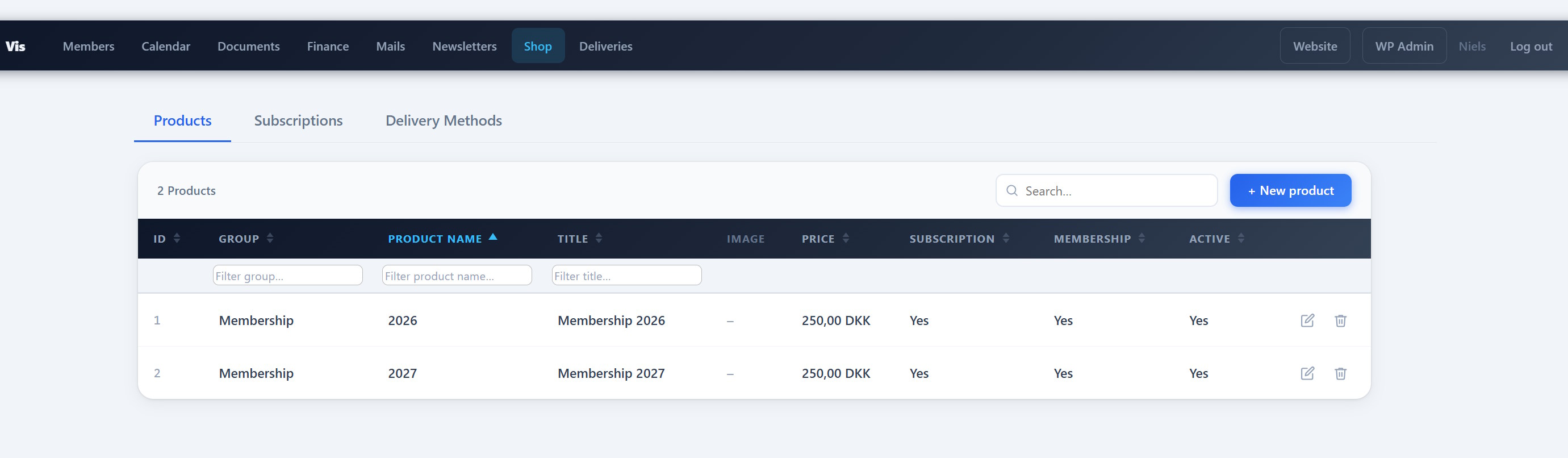
PCIO VIS Products is an extension for the PCIO VIS Member Event plugin. It adds a digital shop with products and license-key subscriptions, a public [pcio_me_shop] storefront with Stripe checkout, a Shop Orders list in Finance, automatic membership subscriptions on the member list, and a renewal/expiry reminder cron.
Features:
- Digital products and license-key subscriptions.
- Public storefront via the
[pcio_me_shop]shortcode with Stripe checkout. - Shop Orders list integrated into the core Finance area.
- Automatic membership subscriptions on the member list.
- Renewal and expiry reminder cron.
This plugin requires the PCIO VIS Member Event core plugin to be installed and active. It reuses the PCIO VIS Tickets plugin’s Stripe configuration.
External services
This plugin connects to the Stripe payment API (operated by Stripe, Inc.) to process card payments for paid products and subscription renewals. Free products (price 0) never contact Stripe. Stripe is only used when Stripe API keys have been entered in the PCIO VIS Tickets settings.
What is sent, and when:
- When a buyer checks out a paid product or renewal: the plugin creates a Stripe Checkout Session by sending the order number, line items (product names and amounts), the currency, the buyer’s email address, and success/cancel return URLs to
https://api.stripe.com. The buyer is then redirected to Stripe’s hosted checkout page, where card details are entered directly with Stripe (card data never passes through this site). - When an administrator refunds a paid order: the payment reference is sent to
https://api.stripe.comto create the refund. - On the order confirmation page: the plugin queries
https://api.stripe.comto confirm payment status (this site does not use a separate webhook for the shop).
Buyer name and email entered at checkout are stored on this site to issue and email licence keys. Because personal data and payment data are transmitted to Stripe, please ensure your own privacy policy covers this. By using this integration you and your buyers are subject to Stripe’s terms and policies:
- Stripe Services Agreement (terms): https://stripe.com/legal/ssa
- Stripe Privacy Policy: https://stripe.com/privacy
螢幕擷圖
安裝方式
- Install and activate the PCIO VIS Member Event core plugin first.
- Upload the
pcio-vis-productsdirectory to/wp-content/plugins/. - Activate the plugin in Plugins in the WordPress admin.
- Add products and configure the shop under the Vis admin menu.
常見問題集
-
Where does the storefront appear?
-
Add the
[pcio_me_shop]shortcode to any page, or browse the shop under/vis/shop. -
Do I need to configure Stripe here?
-
Stripe configuration is shared with the PCIO VIS Tickets plugin. No separate Stripe setup is needed in this plugin.
使用者評論
這個外掛目前沒有任何使用者評論。
參與者及開發者

變更記錄
1.0.0
- Initial release.