
外掛說明
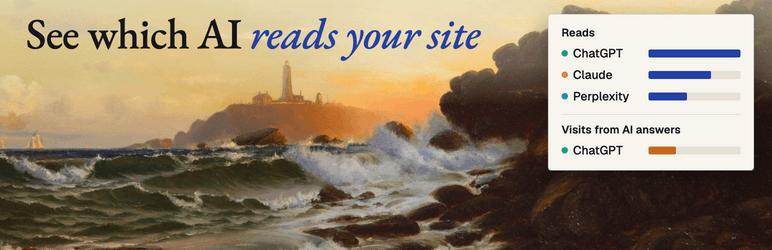
ChatGPT, Claude, Perplexity and Google can only cite a page they actually fetched. This plugin counts those fetches on your own site, so you can see whether the assistants that might recommend you are reading your pages at all.
It is useful with no account. Everything on the AI crawlers screen is read from your own database.
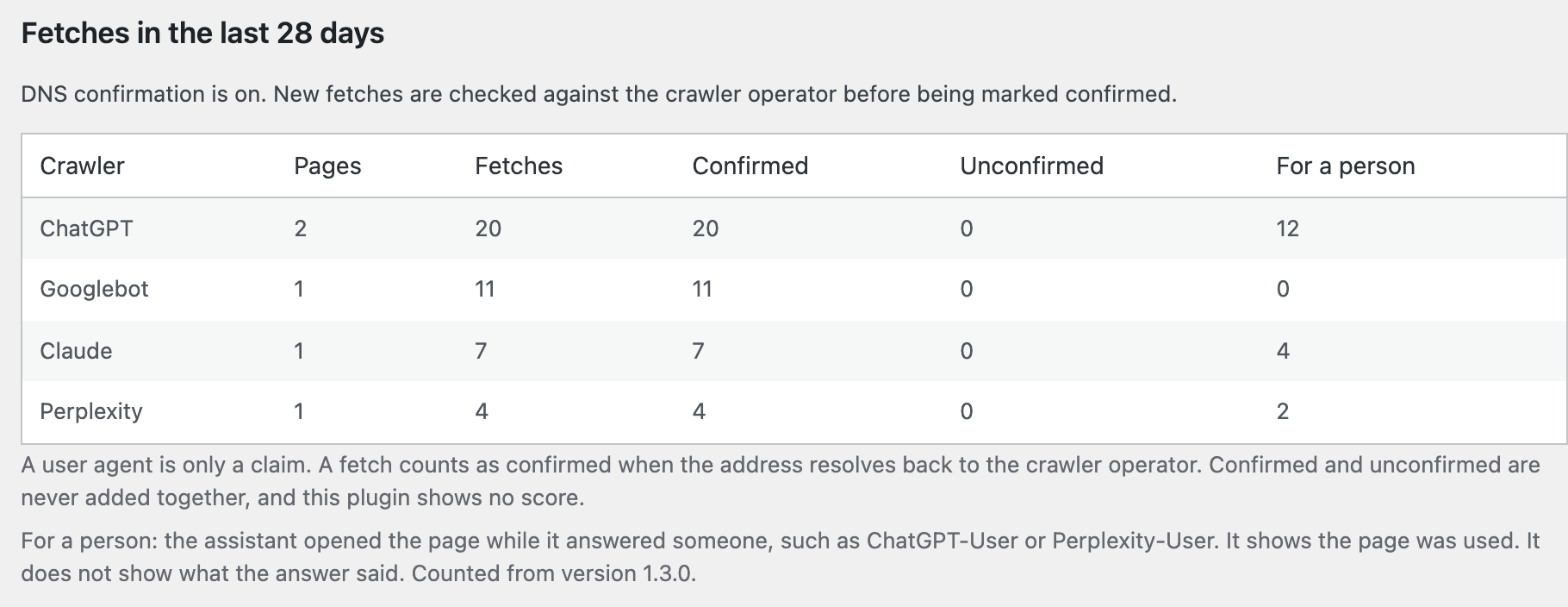
Confirmed, not guessed. A user agent is easy to fake. By default, fetches are checked by forward-confirmed reverse DNS against the crawler operator’s published hosts, and confirmed and unconfirmed fetches are shown in separate columns. Administrators can disable confirmation under Settings > AI crawlers > DNS confirmation settings; new fetches then remain unconfirmed. This plugin deliberately shows no single “visibility score”, because no such number can be verified.
It stores nothing that identifies a person. A crawler fetch is stored only when its user agent matches the published AI-crawler list. No IP address, cookie, referrer address, query string, header or visitor identifier is stored or sent — not even in hashed form. The crawler’s address is used once, in memory, to confirm the crawler, then discarded. No database table has a column that could hold a visitor.
Visits from AI answers. On for new installs. A site that updates from an older version stays off until an administrator ticks “Count visits from AI answers” under Settings > AI crawlers, and any administrator can turn it off there at any time. While it is on, a small script counts a visit when someone opens one of your pages from a link in an AI assistant’s answer: ChatGPT, Perplexity, Claude, Gemini, Copilot, DeepSeek, Grok, Meta AI or Mistral. It sends only the assistant’s name and the page path to your own site, without cookies, and the plugin stores only the day, the assistant, the page and the number of visits. Google AI Overviews and AI Mode share Google search’s referrer, and Copilot in Bing shares Bing’s, so they cannot be told apart and are not counted.
This plugin:
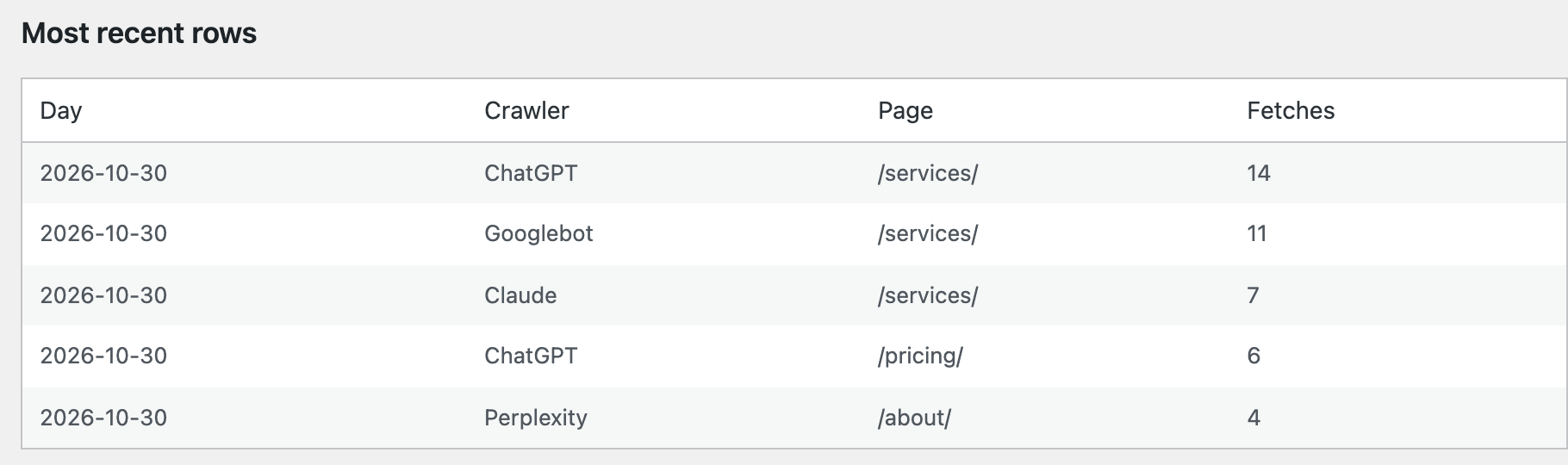
- Counts AI crawler fetches per day and per page, with a separate confirmed count and a separate count of fetches an assistant made while answering a person.
- Counts visits that arrive from AI answers, per day, assistant and page. New installs count by themselves; an administrator can turn it off.
- Checks HTTPS, REST API, Application Password, and draft-permission readiness locally.
- Links to a free MakeTrend shortlist benchmark.
- Connects WordPress to MakeTrend through WordPress’s native, revocable Application Password approval flow.
- Allows MakeTrend to create drafts after you approve a fix. It does not publish content live.
- Adds one direct check to Tools > Site Health.
The plugin never identifies people and never sends visitor data or site content automatically. Reporting the counts to MakeTrend is optional and starts only after an administrator pastes a connection code.
External service
This plugin connects to the MakeTrend software service at maketrend.ai. A MakeTrend account is required to run a benchmark or connect draft publishing. Monitoring and verified-fix features may require a paid MakeTrend subscription; the plugin itself is free.
Data is sent only after an administrator explicitly clicks a MakeTrend link or approves a connection:
- The WordPress site URL, so MakeTrend can prefill the site connection.
- Campaign attribution identifying the WordPress plugin as the source.
- After approval, a WordPress-generated Application Password and username. The Application Password is separate from the normal login password, stored encrypted by MakeTrend, used over HTTPS, and revocable in WordPress.
- Content required to create an administrator-approved WordPress draft.
- If, and only if, an administrator pastes a connection code on Settings > AI crawlers: a signed report of the aggregate crawler counts, sent once a day, right after connecting and right after the visit setting changes. Each row is a date, a crawler name, a page path, a fetch count, a confirmed count, a count of fetches made for a person (and how many of those were confirmed) and the last response status. The report also says whether visit counting is on and, if it is, carries rows of a date, an assistant name, a page path and a visit count. No visitor data exists in that report.
MakeTrend privacy policy: https://maketrend.ai/privacy
MakeTrend terms of service: https://maketrend.ai/terms
螢幕擷圖

安裝方式
- Upload the
maketrend-aifolder to/wp-content/plugins/, or install the ZIP through Plugins > Add Plugin > Upload Plugin. - Activate the plugin.
- Open Settings > MakeTrend.
- Open Settings > AI crawlers to see which AI crawlers fetched your pages. No account is needed for this.
- Review the local connection-readiness checks under Settings > MakeTrend.
- Run a free shortlist benchmark or click “Connect this WordPress site.”
- Approve the MakeTrend Application Password on your own WordPress site when prompted.
Visit counting starts by itself on a new install. To stop it, clear “Count visits from AI answers” under Settings > AI crawlers > Visit counting settings.
常見問題集
-
Does MakeTrend publish directly to my live site?
-
No. The integration creates reviewable WordPress drafts. A WordPress editor decides whether and when to publish them.
-
Does MakeTrend receive my normal WordPress password?
-
No. WordPress creates a separate Application Password for MakeTrend. You can revoke it under Users > Profile > Application Passwords without changing your normal password.
-
Does this plugin track my visitors?
-
No. Crawler counting records a request only when its user agent matches the published list of AI crawlers. Visit counting is on for new installs and off on sites that updated from an older version until an administrator turns it on. While it is on, a small script counts a visit when someone opens a page from a link in a supported AI assistant’s answer; it sends only the assistant’s name and the page path to your own site, and the plugin keeps only the day, the assistant, the page and the number of visits. No IP address, cookie, referrer address, query string or visitor identifier is stored or transmitted, and no table has a column that could hold one.
-
No. The script reads no cookie, writes no cookie and stores nothing in the browser. It sends a request only for a visit that came from a supported AI assistant, and only to your own site. Check your own privacy obligations; while counting is on, the plugin suggests matching text under Settings > Privacy.
-
Why is my count of visits from AI answers lower than my analytics?
-
Google AI Overviews and AI Mode share Google search’s referrer, and Copilot in Bing shares Bing’s, so they cannot be told apart from search. Some assistant apps open links with no referrer and no utm_source. Visitors who block scripts, or a performance setting that delays scripts until someone interacts, can also prevent a count. A reload is not counted again. After 5,000 visits in a UTC day the plugin stops counting for that day and says so (developers can change this with the
maketrend_ai_arrivals_daily_capfilter). Treat the count as a floor. -
Can another website inflate my visit count?
-
The counter accepts requests only from your own pages, refuses known crawlers, counts only real published pages (anything else becomes “Other pages”) and stops at the daily limit. It cannot tell people apart, by design, so someone determined could still add requests up to that limit; the screen marks a day that reached it.
-
What does “confirmed” mean?
-
Any program can claim to be ChatGPT in its user agent. A fetch is marked confirmed only when the requesting address resolves back to a hostname published by the crawler’s operator, and that hostname resolves forward to the same address. Crawlers whose operators publish no such convention can only ever appear as unconfirmed, and the screen says so.
-
Why is there no single visibility score?
-
Because no one can check it. A score mixes confirmed and unconfirmed fetches, pages of different value and crawlers with different purposes into one number that cannot be verified or acted on. This plugin shows the counts instead.
-
Does the reverse DNS check slow my site down?
-
The check runs only for requests whose user agent already claims to be a listed AI crawler, so a normal visit never triggers a lookup. The result is kept in memory for that request only — nothing derived from the address, not even a hash, is written to the database — and your server’s resolver cache keeps repeat lookups cheap. Confirmation is enabled by default. Administrators can open Settings > AI crawlers > DNS confirmation settings, clear “Confirm crawler identity with reverse DNS”, and click “Save DNS setting”. New fetches are then recorded as unconfirmed; existing counts are unchanged. Re-enable the checkbox and save to resume confirmation for future fetches. No MakeTrend account or reporting connection is required.
-
Does activating the plugin send data to MakeTrend?
-
No. The readiness checks run locally. Data leaves WordPress only after an administrator explicitly follows a MakeTrend link or approves the connection.
-
Why must Application Passwords be available?
-
WordPress Application Passwords are the native method for giving an external service revocable REST API access without sharing the user’s normal login password. They are normally available on HTTPS WordPress sites running WordPress 5.6 or newer.
使用者評論
這個外掛目前沒有任何使用者評論。
參與者及開發者

變更記錄
1.5.0
- Connecting to MakeTrend now takes one connection code instead of three values. A wrong code changes nothing, and the plugin never shows a key again. Sites that are already connected keep working.
1.4.1
- Visit counting is on for new installs, so there is nothing to set up. A site that updates from an older version stays as it was until an administrator chooses, and any administrator can turn counting off.
- Sends a report right after connecting and right after the visit setting changes, instead of waiting for the daily report.
1.4.0
- Adds “Visits from AI answers”, off by default: an administrator can turn on “Count visits from AI answers” under Settings > AI crawlers. The plugin then counts, per day, assistant and page, the visits that arrive from links in ChatGPT, Perplexity, Claude, Gemini, Copilot, DeepSeek, Grok, Meta AI or Mistral answers. Counts only: no IP address, cookie, referrer address or visitor identifier is stored or sent.
- The counter accepts only same-origin requests from your own pages, refuses known crawlers, stores only published page paths (anything else is “Other pages”) and stops at a daily limit.
- When reporting is connected, the signed report says whether visit counting is on and carries the visit counts.
- Removes the visit table and settings on uninstall.
1.3.0
- Counts, per page and day, the fetches an assistant makes while it answers one person (ChatGPT-User, Claude-User, Perplexity-User, MistralAI-User), shown as “For a person”. Still counts only: nothing about the person is recorded.
- Updates its own table on the first request after an update, without reactivation.
1.2.1
- Adds an administrator-only, nonce-protected DNS confirmation setting under Settings > AI crawlers. Confirmation remains enabled by default; disabling it records future fetches as unconfirmed without changing history or the optional reporting connection.
- Clarifies the setting’s location and behavior in the description and FAQ.
- Keeps crawler tables within the screen on mobile, with keyboard-accessible horizontal scrolling.
1.2.0
- The reverse-DNS result is no longer cached in the database. The check keeps nothing derived from the crawler’s address — not even a hash; the result lives in memory for the current request only.
- Activation and uninstall remove any DNS-cache entries written by earlier builds.
1.1.0
- Counts AI crawler fetches per day and per page, stored on your own site.
- Confirms each crawler by forward-confirmed reverse DNS and reports confirmed and unconfirmed counts separately.
- Optional signed daily reporting to a connected MakeTrend business.
- Removes its table and options on uninstall.
1.0.0
- Initial connector-readiness dashboard.
- Free shortlist benchmark and demo entry points.
- Native WordPress Application Password connection handoff.
- Local Site Health integration.