

外掛說明
Watrix Drag Drop Reorder is an all-in-one reordering plugin for the WordPress admin. Drag and drop rows right on the list screens you already use — no separate ordering screen.
Features:
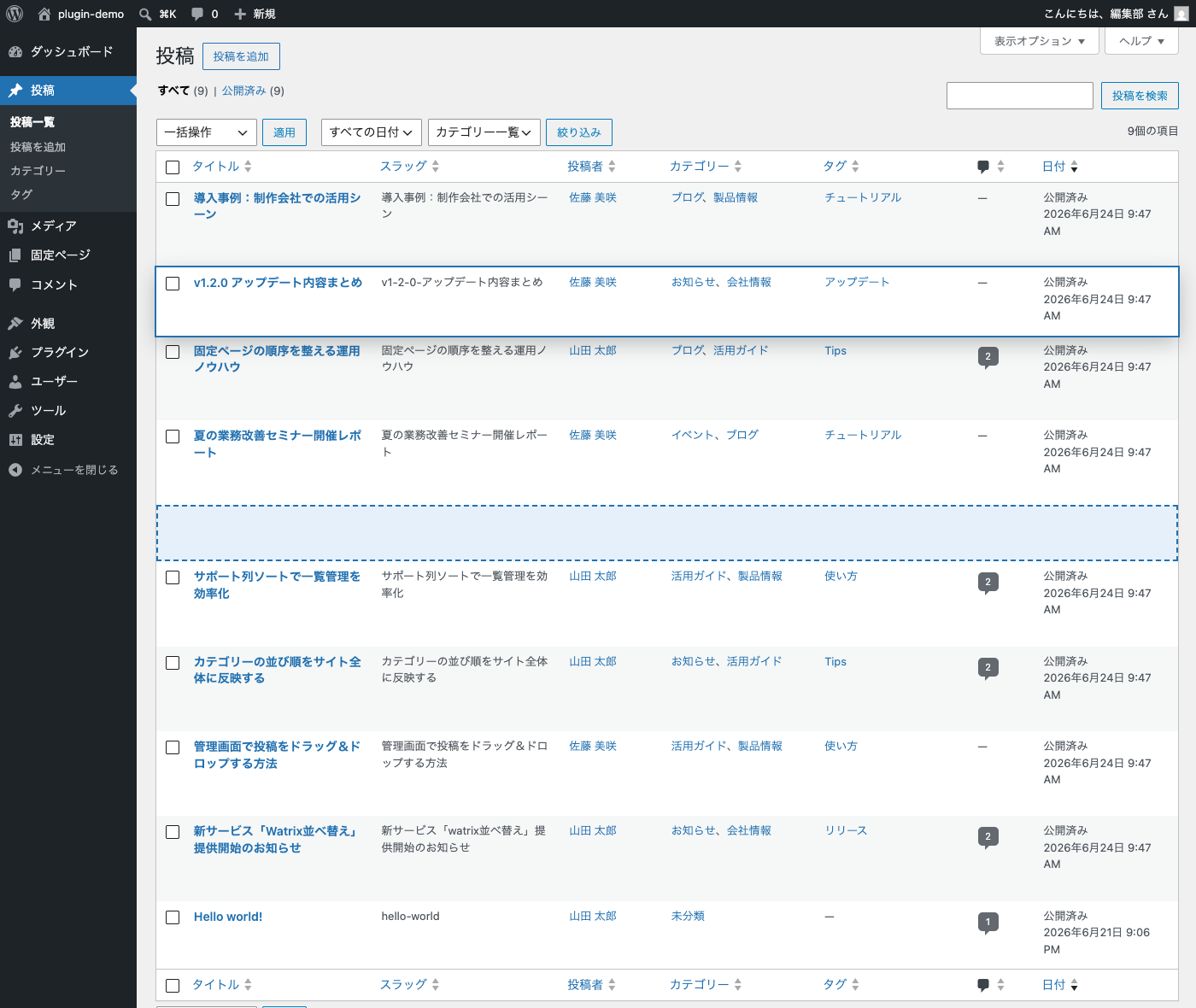
- Post order — drag and drop rows on the Posts list. The order is stored in the core
menu_orderfield and applied to the admin list (and optionally to the front end). - Page order — drag and drop rows on the Pages list, within the same parent. Fully compatible with the core “Order” attribute and Quick Edit values.
- Custom post type order — drag and drop rows on the list screens of your custom post types. Every post type registered with an admin UI is supported out of the box; hierarchical post types behave like pages (within the same parent).
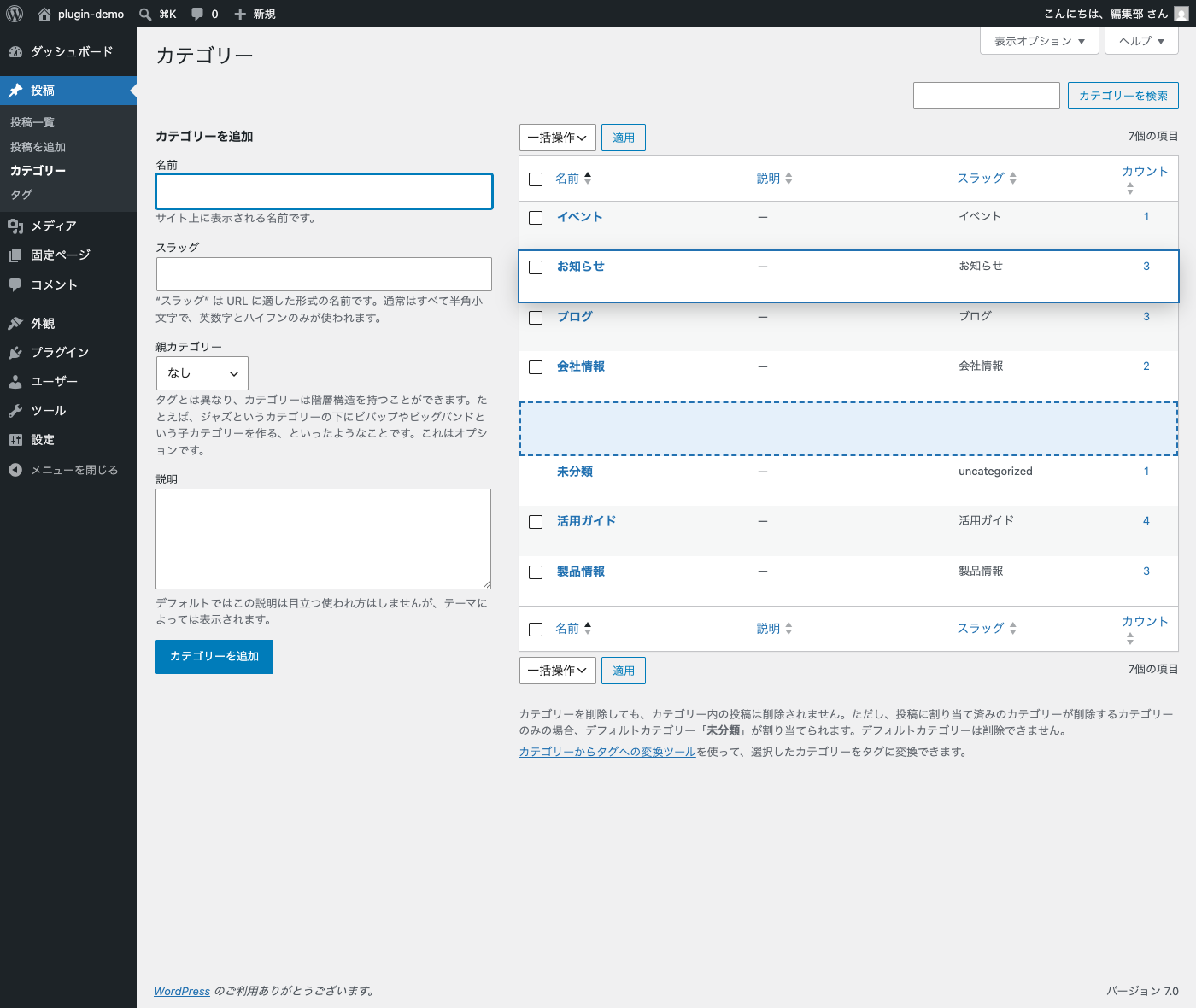
- Category, tag & custom taxonomy order — drag and drop rows on the Categories and Tags lists, and on the list screen of any taxonomy you select in Settings > Sort Order (for example WooCommerce product tags or block pattern categories). The order is stored in term meta and applied to
get_terms()/wp_list_categories()when no explicit order is requested. - Import existing order — switching from another term ordering plugin? Import the order it saved in the
term_ordercolumn (Category Order and Taxonomy Terms Order and similar plugins) per taxonomy. Check how many terms will change before importing, and undo the import from a backup if needed. Running it again gives the same result. - WooCommerce friendly — product categories keep using WooCommerce’s own ordering. Importing also updates WooCommerce’s order so your store shows the imported order.
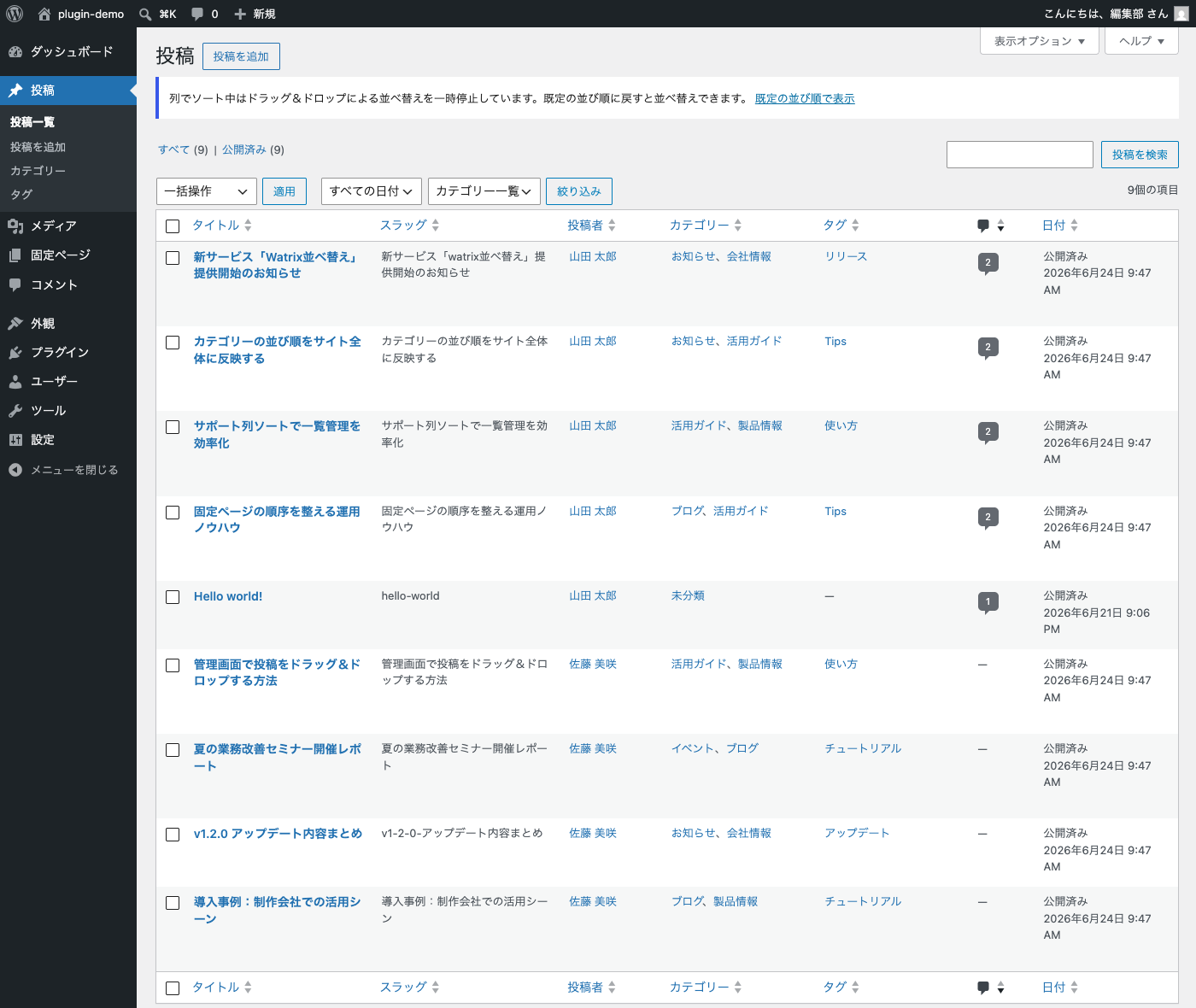
- Sortable columns — click the Author, Categories, Tags and Comments column headers on the Posts list (and Author on the Pages list) to sort.
- Slug column — show a Slug column on the post list screens of sortable post types. Click the header to sort by slug.
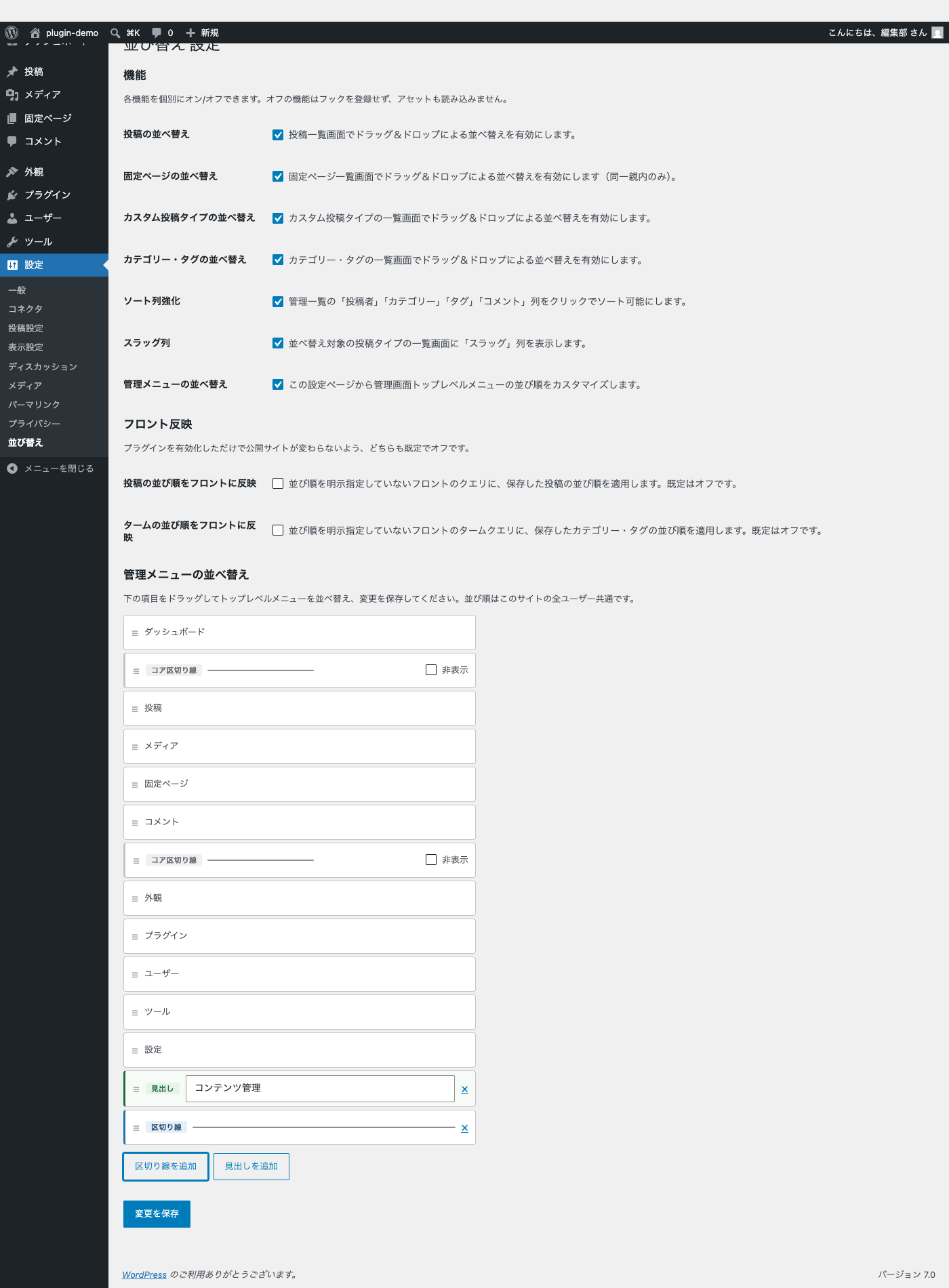
- Admin menu order — reorder the top-level admin menu from the settings page. Add, remove and label separators; hide and restore core separators. Override the displayed label and icon for any top-level menu item, and customize the separator color and thickness to match your branding.
- Each feature can be enabled or disabled individually. Disabled features register no hooks and load no assets.
- Front-end ordering is off by default, so activating the plugin never changes your public site. Opt in from Settings > Sort Order.
- Developer filters:
wddr_sortable_post_types,wddr_sortable_taxonomies,wddr_apply_front_order,wddr_apply_term_order,wddr_woocommerce_managed_taxonomies,wddr_import_min_ordered_ratio. - Uses only the bundled jQuery UI Sortable — no external scripts, no build step.
日本語補足:
- 投稿・固定ページ・カスタム投稿タイプ・カテゴリー・タグの一覧画面で、行をそのままドラッグ&ドロップして並べ替えられます。
- 設定 > 並び替え で、並べ替えるタクソノミー(WooCommerce の商品タグ、ブロックパターンのカテゴリーなどのカスタムタクソノミー)をチェックで選べます(既定はカテゴリーとタグ)。
- 他の並べ替えプラグイン(Category Order and Taxonomy Terms Order など、terms テーブルの
term_order列に保存するもの)の並び順を、タクソノミー単位で取り込めます。「変更件数を確認」で取り込む前に件数を確認でき、何度実行しても結果は同じです。取り込み前の並びは退避され、「取り込みを元に戻す」で戻せます。 - WooCommerce の商品カテゴリーは WooCommerce 自身の並び順(term meta
order)を正とし、取り込み時はそちらにも同じ値を書き込みます。 - 管理画面に一覧を持つカスタム投稿タイプは追加設定なしで対象になります(階層型は固定ページと同じく同一親内のみ)。
- 投稿の並び順はコアの
menu_order、ターム(カテゴリー・タグ)の並び順は term meta_wddr_term_orderに保存します。 - 固定ページは同一親内の兄弟間のみ並べ替えできます(親子関係は変更しません)。
- 投稿一覧の「投稿者」「カテゴリー」「タグ」「コメント」列、固定ページ一覧の「投稿者」列がクリックでソート可能になります。
- 並べ替え対象の投稿タイプの一覧画面に「スラッグ」列を表示できます(クリックでスラッグ順にソート)。
- 管理画面左サイドバーのトップレベルメニューを設定ページから並べ替えられます(サイト全体共通)。各メニューの表示テキストとアイコンを個別に上書きできます。区切り線の色と太さもカラーピッカーで変更可能です。
- フロント(公開側)への並び順反映は既定でオフです。設定 > 並び替え からオプトインしてください。
- 7つの機能はそれぞれ個別にオン/オフできます。
螢幕擷圖
安裝方式
- Upload the plugin to
wp-content/plugins/or install it from Plugins > Add New, then activate it. - Open the Posts, Pages, Categories or Tags list and drag rows to reorder them. The new order is saved automatically.
- Open Settings > Sort Order to toggle features, reorder the admin menu, or opt in to front-end ordering.
常見問題集
-
Where is the order data stored?
-
Post and page order is stored in the core
menu_ordercolumn of the posts table. Term order (categories, tags and the taxonomies you select) is stored in the term meta key_wddr_term_order; for taxonomies ordered by WooCommerce (product categories) the same value is also written to WooCommerce’s term metaorder. The feature toggles, the selected taxonomies, the top-level admin menu order, the custom and hidden admin menu separators, and the per-menu label / icon / separator-style overrides are stored in eight options (wddr_settings,wddr_term_taxonomies,wddr_admin_menu_order,wddr_admin_menu_separators,wddr_admin_menu_hidden_separators,wddr_admin_menu_labels,wddr_admin_menu_iconsandwddr_admin_menu_separator_style). Import backups (the previous values of the terms an import changed and the order the import wrote) are stored per taxonomy in options namedwddr_import_backup_{taxonomy}andwddr_import_backupdata_{taxonomy}, listed inwddr_import_backup_taxonomies(none of them is autoloaded), until you undo the import or discard the backup. No database tables are added or altered. -
What happens when I uninstall the plugin?
-
Uninstalling deletes the plugin’s own data: the options listed above and the
_wddr_term_orderterm meta. WooCommerce’sorderterm meta belongs to WooCommerce and is kept. Themenu_ordervalues are kept, becausemenu_orderis a core field shared with other features (such as the page “Order” attribute); resetting it could break ordering you set elsewhere. Your content is never touched. -
Why can’t I drag rows?
-
Drag and drop is paused while the list is sorted by a column (for example after clicking the Title, Author or a taxonomy column header, or when you arrive via a link that includes a sort). Reordering a column-sorted list would be ambiguous, so the plugin disables dragging and shows an admin notice instead. Click “Show default order” in the notice (or remove the sort from the column header) to switch back to the saved order — dragging works again immediately. Also make sure the feature for that screen is enabled in Settings > Sort Order.
-
I reordered posts but the front end did not change. Why?
-
Front-end ordering is off by default so that activating the plugin never changes your public site. Enable “Apply post order on front” (and/or “Apply term order on front”) in Settings > Sort Order. Note that sticky posts still appear first — that is standard WordPress behavior.
-
I dragged rows while filtering the list by category. What order was saved?
-
The global order. Watrix Drag Drop Reorder keeps a single order per post type (and per taxonomy); it does not store a separate order per category filter. Reordering a filtered list updates the global positions of the rows you see.
-
Can I use Watrix Drag Drop Reorder together with another ordering plugin?
-
No. Two ordering plugins change the same queries and fight over the result (for example, Category Order and Taxonomy Terms Order overrides the term order, and post ordering plugins write to the same
menu_orderfield). Use one ordering plugin at a time. To switch without losing your order:- In Settings > Sort Order, select the taxonomies you want to reorder under “Taxonomies” and save.
- Under “Import existing order”, click “Check changes” and then “Import” for each taxonomy. Do this while the old plugin is still active — the data it saved stays in place either way. The order before the first import is backed up; “Undo import” restores it.
If the old plugin is Category Order and Taxonomy Terms Order with Auto Sort on, you can instead click “Check current display order” and “Import current display order”. That copies the order your site shows right now, which is the only way to keep it when the old plugin never saved an order (every term_order is 0) and the order is simply what the database returns. The settings page tells you whether its Auto Sort is on. - Deactivate the old ordering plugin(s).
- Turn on “Apply post order on front” and/or “Apply term order on front” so the public site keeps the same order.
Tip: turning on step 4 before step 3 avoids a short moment in which visitors see the default order. For product categories, turn on “Apply term order on front” too if your theme or blocks read them by name (the Store API does), because WooCommerce applies its own order only to queries that do not ask for a specific order. Product categories ordered by WooCommerce need no front-end setting: WooCommerce applies its own order, which the import has updated.
-
The import timed out on a very large site. What now?
-
Run the import again. It only writes terms whose order is not yet up to date, so each run continues where the previous one stopped. The backup of an unfinished import is kept, so “Undo import” still returns to the order from before it started. “Check changes” shows 0 terms to update when it is complete.
-
Do I need to import post and page order from Real Custom Post Order, Intuitive Custom Post Order or Post Types Order?
-
No. These plugins store the post order in the core
menu_orderfield, which Watrix Drag Drop Reorder reads and writes as is. After you deactivate them, the list screens keep the same order. For the public site, turn on “Apply post order on front” in Settings > Sort Order. -
How does it work with WooCommerce product categories?
-
WooCommerce orders product categories (and product attributes) itself: it stores the order in the term meta
order, sorts them that way everywhere, and adds its own drag and drop to the Product categories screen. To avoid two plugins fighting over the same screen and query, Watrix Drag Drop Reorder leaves these taxonomies to WooCommerce: it does not add its own drag and drop there and does not change their queries. When you import an existing order for product categories, the same order is written to WooCommerce’sordermeta as well, so the store shows the imported order right away. WooCommerce’s previous order is backed up first and can be restored with “Undo import”. To protect your store, the import is disabled when fewer than half of the terms have a saved order (it would mostly sort them by name; developers can change the ratio with thewddr_import_min_ordered_ratiofilter), and “Check changes” shows how many terms WooCommerce currently orders differently — for example after you reordered them in WooCommerce — because importing again would revert them. With “Apply term order on front” on, WooCommerce’s order is also applied to front-end queries of product categories that sort by name, such as the Store API, so the storefront keeps one order everywhere. Product tags are not ordered by WooCommerce, so they work like any other taxonomy. Developers can change which taxonomies are treated as WooCommerce-managed with thewddr_woocommerce_managed_taxonomiesfilter. -
The order numbers looked odd right after my first drag on a large site. Is that a problem?
-
No. When existing posts have mixed or duplicate
menu_ordervalues, Watrix Drag Drop Reorder falls back to renumbering the visible page from the smallest value. This can temporarily overlap with neighboring pages, but the list stays stable (date is used as the secondary sort key) and the numbering self-heals the next time you reorder that page. -
Which post types are supported?
-
Posts, pages and every custom post type that has an admin list screen (registered with
show_ui). Custom post types work out of the box — no code needed — and can be turned off with the “Custom post type order” toggle in Settings > Sort Order. Hierarchical post types are reordered within the same parent, like pages. Developers can narrow or extend the list with thewddr_sortable_post_typesfilter. -
Does it work with custom post types and taxonomies?
-
Custom post types are supported out of the box (see the previous answer). Custom taxonomies can be selected in Settings > Sort Order > Taxonomies (every taxonomy registered with
show_uiis listed). Developers can still narrow or extend the selection with thewddr_sortable_taxonomiesfilter, which now receives the selected taxonomies. -
Anything to know for very large sites?
-
Sorting the Categories/Tags columns on the Posts list uses a JOIN with
GROUP_CONCAT, which is limited to the admin screens. Saving a term order reads the taxonomy with a single query and writes only the terms whose position changed, and the settings page only counts terms until you click “Check changes”. Measured on a test site with 5,000 terms and 10,000 posts: saving a drag and drop on a term list takes about 40 ms, checking changes about 30 ms, and importing 5,000 terms about 1 second. Front-end ordering adds no extra queries.
使用者評論
這個外掛目前沒有任何使用者評論。
參與者及開發者

變更記錄
1.4.2
- Fixed: with “Apply term order on front” on, the order saved here was not applied while another term ordering plugin (such as Category Order and Taxonomy Terms Order) was still active, so the front end only changed the moment that plugin was deactivated. Product tags were hit hardest: product categories keep their order in WooCommerce’s own
orderterm meta, but product tags have nothing else to fall back on, so their order jumped on deactivation. The order is now applied last (after WooCommerce and after other ordering plugins), so you can turn the setting on, compare the front end, and only then deactivate the old plugin. - A taxonomy with no saved order is left alone entirely, so turning “Apply term order on front” on before importing no longer moves anything.
- Fixed: WooCommerce’s own numeric name sorting (
name_num, used by product attributes set to sort by numeric name) and its menu order sorting are no longer overwritten. - Reading the current display order for the import no longer removes a
wddr_apply_term_orderfilter added by other code, and no longer leaves its own filters behind if the query throws. - New filter
wddr_terms_clauses_priorityto change the priority the order is applied at, for sites where another plugin sorts terms even later.
1.4.1
- Fixed: with “Apply post order on front” on, WooCommerce product lists (the shop and product category and tag pages) were sorted by menu order instead of the sorting set in WooCommerce. This plugin set the order before WooCommerce, which then read it as a requested sort and skipped its default sorting (title, price and so on). WooCommerce product lists and single-page queries are now left to WooCommerce. New filter
wddr_is_woocommerce_catalog_query. - New: “Import current display order” for taxonomies sorted by Category Order and Taxonomy Terms Order with Auto Sort on. It copies the order shown on the front end right now, including sites where every term_order is 0 and the order is simply what the database returns, so deactivating the old plugin keeps the same order. The import is backed up and can be undone like the other import. The settings page shows whether the old plugin’s Auto Sort is on.
- With “Apply term order on front” on, WooCommerce’s own order is now also applied to front-end queries of product categories that sort by name, such as the Store API (WooCommerce applies its order only when no order is requested). Product attributes keep their own sorting.
- Fixed: with “Apply post order on front” on, search results were sorted by menu order instead of by relevance. Search results are now left to WordPress.
- Fixed: term queries that ask for
namein descending order now come back in descending order instead of ascending.
1.4.0
- Taxonomies: choose which taxonomies can be reordered from Settings > Sort Order (every taxonomy with an admin UI is listed, such as WooCommerce product tags or block pattern categories). Categories and tags stay selected by default; the
wddr_sortable_taxonomiesfilter now runs on the selection. - Import existing order: copy the term order saved in the
term_ordercolumn by plugins such as Category Order and Taxonomy Terms Order, per taxonomy. “Check changes” shows how many terms will change before you import; running it again gives the same result and only writes terms that are not up to date yet (safe to re-run after a timeout). The order before the first import is backed up and can be restored with “Undo import”. Administrators only. - WooCommerce: taxonomies ordered by WooCommerce (product categories, product brands, product attributes) are left to WooCommerce — no second drag and drop on their screen and no query changes. Importing and saving also write WooCommerce’s
orderterm meta so both stay in sync. The import is disabled when fewer than half of the terms have a saved order, and “Check changes” warns about terms WooCommerce currently orders differently. - Undo: “Undo import” returns every term to its exact value from before the latest import, even after the list was reordered with drag and drop here or in WooCommerce. The backup keeps the previous values of the terms the import changed plus the order the import wrote; terms the import did not change are restored to that order, which equals their value before the import. The backup is taken again at each import once the previous import has finished (so undo returns to the order right before the latest import), and a backup of an import that stopped halfway is kept until the import completes, including when the re-run finds nothing left to write. The undo confirmation shows the backup date.
- Backups are stored per taxonomy (options
wddr_import_backup_{taxonomy}for the date and status,wddr_import_backupdata_{taxonomy}for the values; neither is autoloaded), so large tag sets no longer create one big option and the settings page reads only the small status option. Backups can be discarded from the settings page, including those of taxonomies that are no longer selected or whose plugin is inactive. Uninstalling removes every backup and import notice, even ones missing from the backup list. - A selected taxonomy that is registered without an admin screen (show_ui off) is no longer labelled as not registered.
- Resuming an import that stopped halfway keeps the order of the stopped import as the undo target, so “Undo import” still returns to the order from before it, even if terms were reordered in between.
- Resuming a stopped import whose backup data is damaged is refused instead of retaking the backup from the half-imported state (discard the backup, then import again). A backup that could not be saved at all is also removed from the backup list.
- The backup is read back from the database before the import writes anything; if it cannot be confirmed, the import is not run. If the backup data is later missing or damaged, “Undo import” reports it instead of claiming success, and the backup can be discarded from the settings page (also when only the backup data is left).
- Selected taxonomies that are not registered right now (for example while their plugin is inactive) stay selected and are shown in the settings page, where they can be unchecked to remove them.
- Term order meta: rows with an empty value or duplicate rows are updated in place instead of adding new rows, and term queries no longer return duplicate terms when duplicate order rows exist.
- Note for sites that added
product_catwith thewddr_sortable_taxonomiesfilter in 1.3.0: while WooCommerce is active, WooCommerce already replaced the query order with its ownordermeta, so the order saved by this plugin was not what your store showed. Nothing changes on the store in 1.4.0; the Product categories screen now uses only WooCommerce’s drag and drop. To copy an order from another plugin into WooCommerce, use the import. - Performance: saving a term drag and drop now writes only the terms whose position changed and reads the current order with one query (1,000 terms: about 165 ms to 17 ms; 5,000 terms: about 770 ms to 36 ms in our measurements). Saving a post order primes the post cache in one query. The settings page no longer computes the import preview on every load.
- FAQ: how to switch from another ordering plugin, and why post order needs no import.
1.3.0
- Admin menu order: override the displayed label of any top-level menu item from the settings page (update badges such as comment / plugin counts are preserved).
- Admin menu order: override the icon of any top-level menu item — accepts a Dashicons class (e.g.
dashicons-megaphone), anhttps://URL, an SVG data URI, ornonefor a hidden icon. - Admin menu order: customize the separator color and thickness (1–5 px) from the settings page. The color picker uses the WordPress core color picker.
- All overrides use the same normalized slug matching as the reorder feature, so menus with symbol-rich slugs (such as
customize.php?return=...) are matched reliably.
1.2.0
- Admin menu order: separators and headings are now added independently with two separate buttons (“Add separator” and “Add heading”). Up to 10 of each type.
- Headings are shown as a styled section band in the admin sidebar (background band, flush left gutter, vertically centered).
- Redesigned the settings list: each row shows a drag handle, a type badge (separator / heading / core separator) and a clearer separator line, so the row type is recognizable at a glance.
1.1.0
- Admin menu order: add, remove and label separators with optional heading text; hide and restore core separators. All from the settings page, saved with the existing Settings API form (no extra Ajax). Up to 10 custom separators.
1.0.0
- Initial release: drag-and-drop ordering for posts, pages, custom post types, categories and tags; sortable admin columns (Author / Categories / Tags / Comments); Slug column on list screens; top-level admin menu reordering; per-feature toggles; opt-in front-end ordering.