
外掛說明
Picqlo Image Converter converts your existing WordPress media library from JPEG and PNG to modern formats (AVIF, WebP) for faster page loads and better Core Web Vitals scores — without touching your content or changing any image URLs.
Key features:
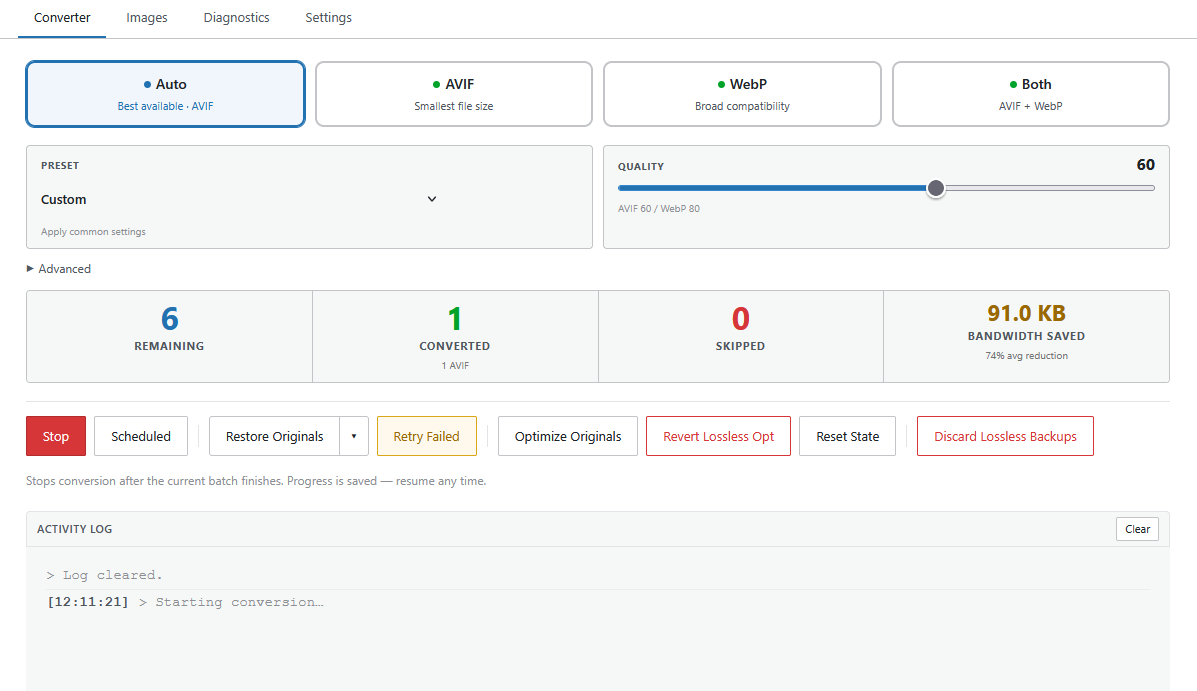
- Bulk conversion — convert your entire media library in one click
- AVIF + WebP — AVIF where your server supports it, WebP as a reliable fallback
- Auto mode — uses AVIF if available locally, WebP otherwise; no manual configuration needed
- Non-destructive by default — AVIF and WebP conversion never modifies your originals; companion files are placed alongside them and deleted on revert. Lossless Optimize is the exception — it rewrites originals in place but creates a
.lossless-bakbackup first; reverting restores from the backup - Real-time progress log — live streaming log with encoder badges (
[GD],[Imagick],[exec],[API]) and a progress bar - Per-image controls — convert, reconvert, revert, or force-cloud on individual images from the Images tab
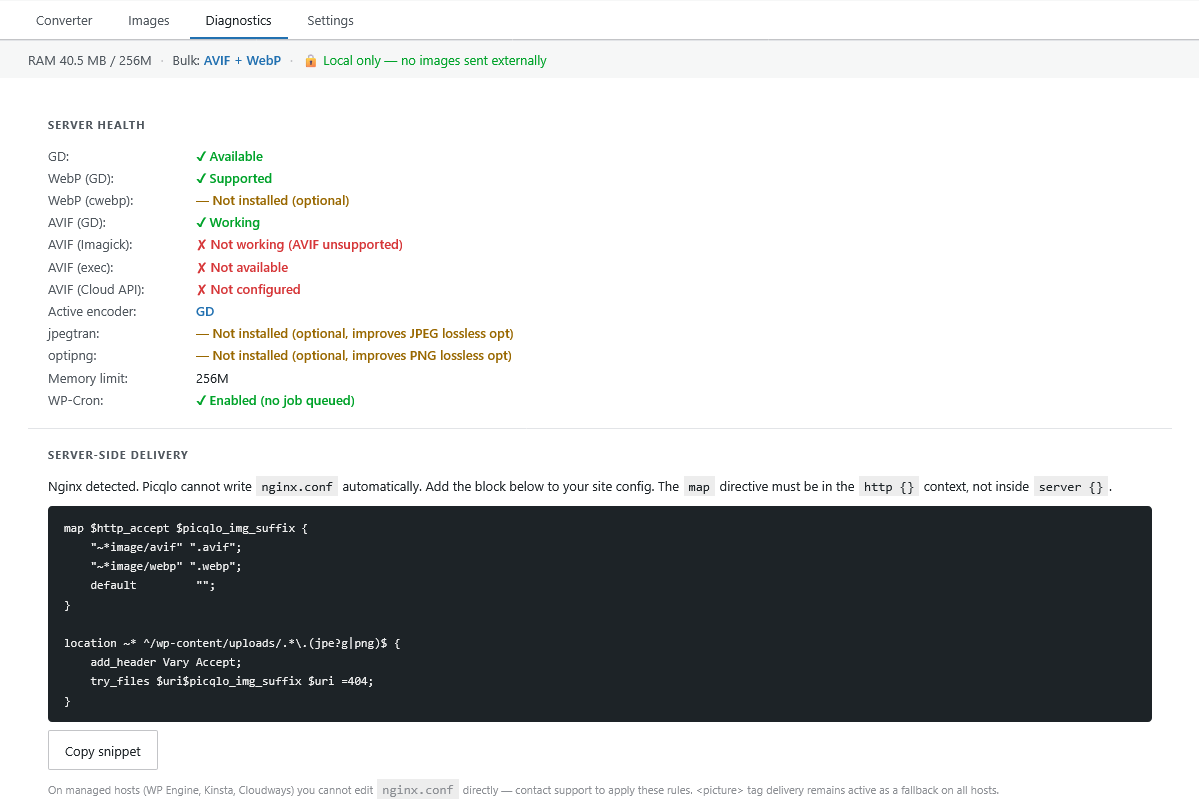
- Diagnostics tab — see which encoders are available on your server before you start
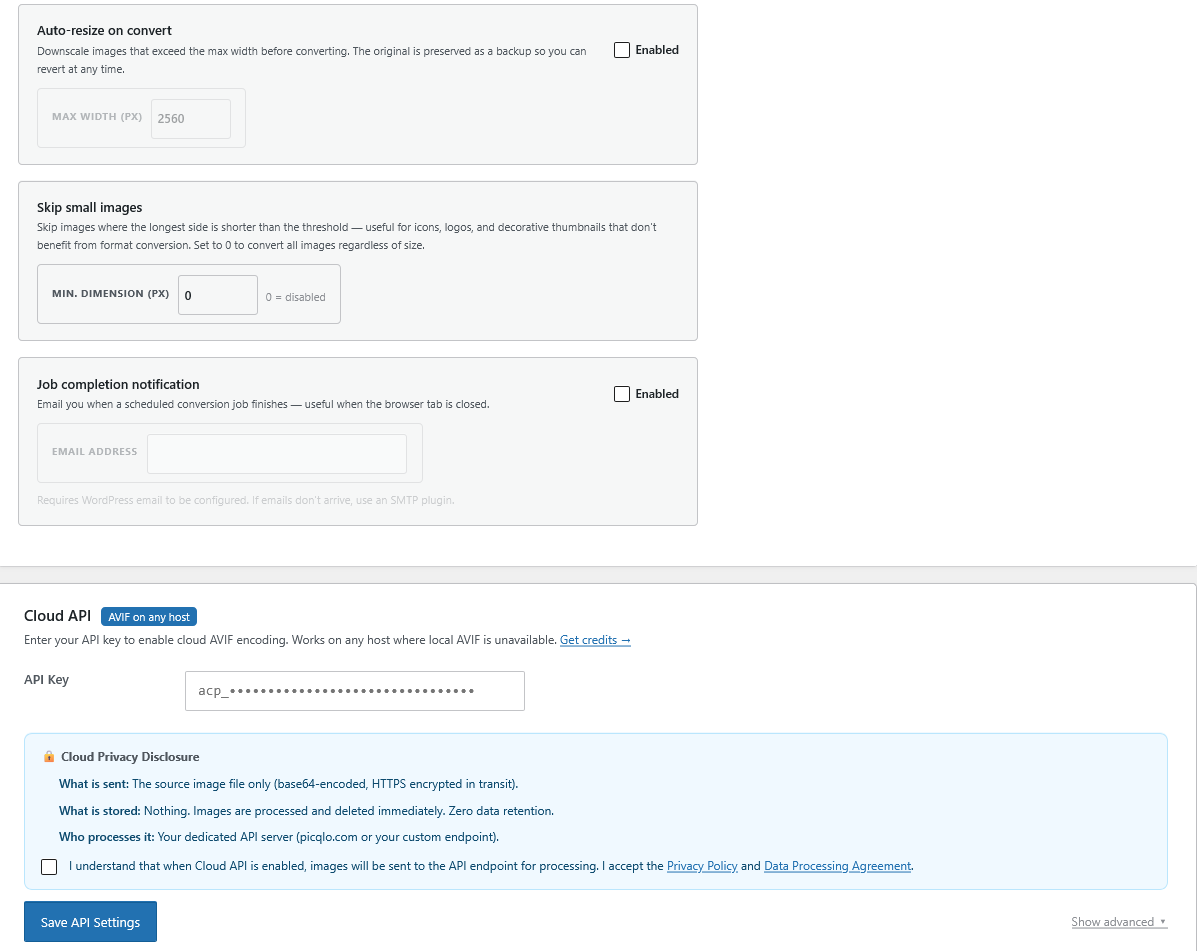
- Cloud API — guaranteed AVIF encoding on any host via the Picqlo Cloud API, even on shared hosting without local AVIF support (requires credits from picqlo.com)
Encoders used (in priority order):
AVIF:
1. GD library (imageavif)
2. ImageMagick (via the Imagick PHP extension)
3. cavif-rs or avifenc binary (via exec, if pre-installed on your server)
4. Picqlo Cloud API — remote AVIF encoder, works on any host (requires API key at picqlo.com)
5. WebP fallback — if AVIF fails on all local encoders, falls back to WebP automatically
WebP:
1. ImageMagick (better quality, ICC profile preserved)
2. cwebp binary (via exec, if pre-installed on your server)
3. GD library (imagewebp)
Cloud API:
The Cloud API is an optional external service for guaranteed AVIF encoding on hosts where no local AVIF encoder is available (e.g. old shared hosting). It requires an API key from picqlo.com. Credits are consumed only when the cloud encoder is actually used; if your server handles AVIF locally, no credits are spent and no data is sent externally.
Privacy: All local processing is entirely local — no data leaves your server. Cloud API processing is in-memory only; images are deleted immediately after conversion. See picqlo.com/privacy.
External Services
This plugin optionally connects to the Picqlo Cloud API (api.picqlo.com), a remote AVIF encoding service. The Cloud API is only used when:
- An API key has been entered in the plugin settings, AND
- A conversion is initiated that uses the cloud encoder
No data is sent to external servers during free local conversion. When the Cloud API is used, images are transmitted over TLS 1.2+, processed in-memory, and deleted immediately after conversion. Nothing is stored.
- Service: Picqlo Cloud API
- Privacy Policy: https://picqlo.com/privacy
- Data Processing Agreement: https://picqlo.com/dpa
- Terms of Service: https://picqlo.com/terms
- Account & Credits Portal: app.picqlo.com — account registration, API key management, and credit purchases. No image data is sent to this service. Links to this portal are shown only when the official Picqlo API key is configured.
Administrators may configure a custom AVIF API endpoint in the plugin settings. When a custom endpoint is configured, image data and the API key are transmitted to that endpoint instead of api.picqlo.com. Custom endpoints must use HTTPS; the plugin rejects HTTP and private/internal addresses.
Privacy Policy
When the Cloud API is used, source images are transmitted to api.picqlo.com over TLS 1.2+. Images are processed in-memory and deleted immediately after conversion — nothing is stored. No data is sent to external servers during free local conversion.
- Privacy Policy: https://picqlo.com/privacy
- Data Processing Agreement: https://picqlo.com/dpa
AI Disclosure
Portions of this plugin’s code were developed with the assistance of AI tools. All code has been reviewed, tested, and is fully understood by the plugin author. No AI-generated code was included without human review and verification.
螢幕擷圖
安裝方式
Automatic
- Go to WordPress Admin Plugins Add New
- Search for “Picqlo Image Converter”
- Click Install Now Activate
Manual
- Download the
picqlo.zipfile - Go to WordPress Admin Plugins Add New Upload Plugin
- Upload
picqlo.zip, click Install Now Activate
First conversion
- Go to WordPress Admin Image Converter
- Select your target format (Auto recommended)
- Click Start Conversion and watch the live log
Full setup guide: picqlo.com/setup
常見問題集
-
What happens to my original images?
-
By default, yes — AVIF and WebP conversion never touches your originals; companion files are created alongside them (e.g.
photo.jpgphoto.avif/photo.webp) and deleted on revert. The exception is the Lossless Optimize feature, which rewrites originals in place to reduce file size. Before doing so it creates a.lossless-bakbackup, and reverting restores from that backup. -
Yes. WebP works on any host that runs PHP and WordPress. AVIF requires a modern ImageMagick (v7+) or GD with libavif — available on most managed hosts. If AVIF isn’t available locally, the Cloud API provides guaranteed AVIF on any host (requires credits from picqlo.com).
-
Can it use server-installed encoders like cavif, cwebp, jpegtran, or optipng?
-
Yes. If those tools are installed on your server (e.g. via your host’s package manager), Picqlo detects and uses them automatically. The plugin does not download or install binaries itself.
-
Will it change my image URLs or break my content?
-
No. Your original files stay untouched. AVIF and WebP companion files are generated alongside them, and WordPress serves the best format each browser supports via a
<picture>tag filter. Your original URLs remain identical and all posts and pages continue to work without any edits. -
What formats are converted?
-
JPEG and PNG files only. GIF, SVG, AVIF, WebP, and other formats are skipped automatically. Native AVIF or WebP files uploaded directly to the media library will not appear in the Images tab — they are already in a modern format and do not need conversion.
-
What if a converted file ends up larger than the original?
-
The plugin keeps the original in this case and marks the image as skipped (shown as “Larger ⚠” in the log). If a cloud-converted file is larger than the original it is also discarded and the credit is automatically refunded.
-
Can I convert specific images instead of the whole library?
-
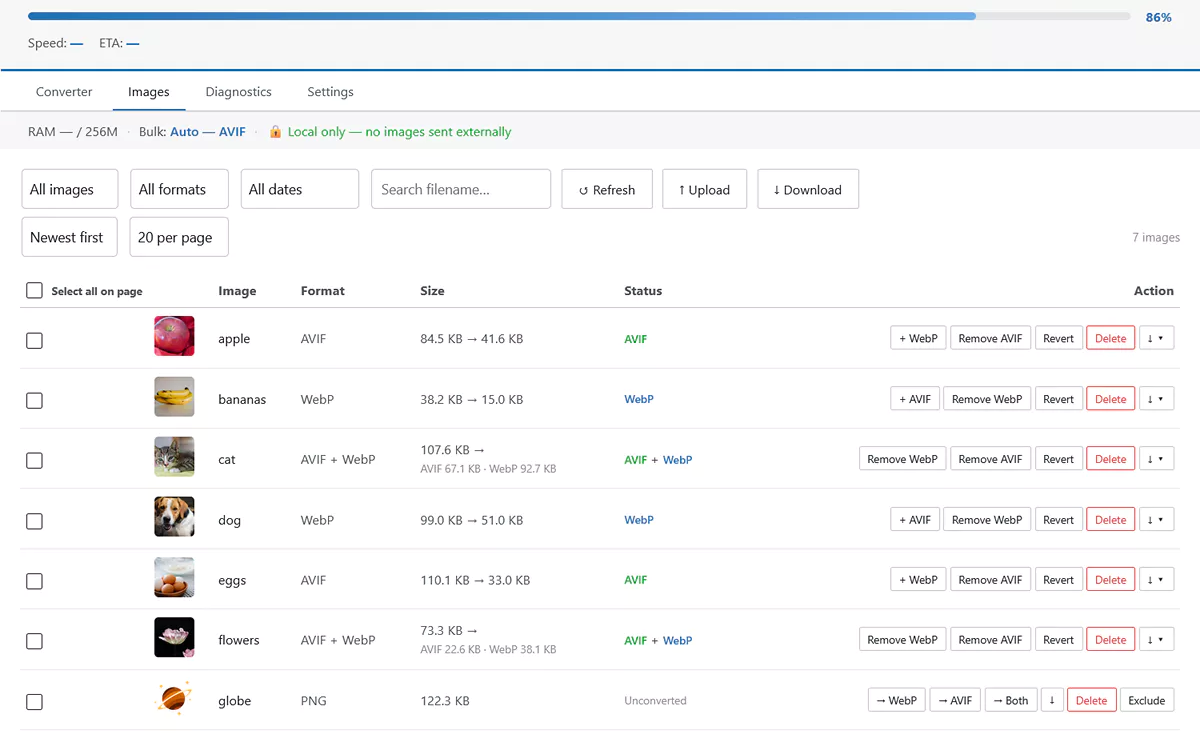
Yes. The Images tab shows your full library with filtering, sorting, and per-image actions. You can convert, reconvert, or revert individual images.
-
Do credits expire?
-
No. Credits never expire and remain on your API key until used or the key is revoked.
-
Is my image data private when using the Cloud API?
-
Yes. Images sent to the Cloud API are encrypted in transit (TLS 1.2+), processed entirely in-memory, and deleted immediately after conversion. Nothing is stored. See the Privacy Policy and Data Processing Agreement.
-
How do I get a Cloud API key?
-
Create an account at app.picqlo.com, purchase a credit pack, and copy your API key from the Keys tab. Paste it into the Cloud API card in the plugin settings.
使用者評論
這個外掛目前沒有任何使用者評論。
參與者及開發者

變更記錄
7.6
- Improved: Converter tab stats bar now shows average reduction percentage alongside bandwidth savings, and a format breakdown (AVIF / WebP / both) below the converted count
7.5
- Fixed: “All formats” download in the Images tab action column now correctly includes the WebP companion for WebP-only images (previously only the original was included)
- Fixed: download button on unconverted images now forces a file download rather than opening the file in the browser
7.4
- Improved: bulk ZIP download now excludes thumbnail-size companions by default; an “Include thumbnail sizes” checkbox in the download modal opts them back in — applies to both the bulk download button and the per-row “All formats” shortcut
7.3
- Fixed: “Restore Originals” bulk revert now correctly skips images that have only skip sentinels — only images with real companions are reverted
- Fixed: Diagnostics tab “Clear Skip Flags” now refreshes the counts panel after completion rather than after a fixed delay
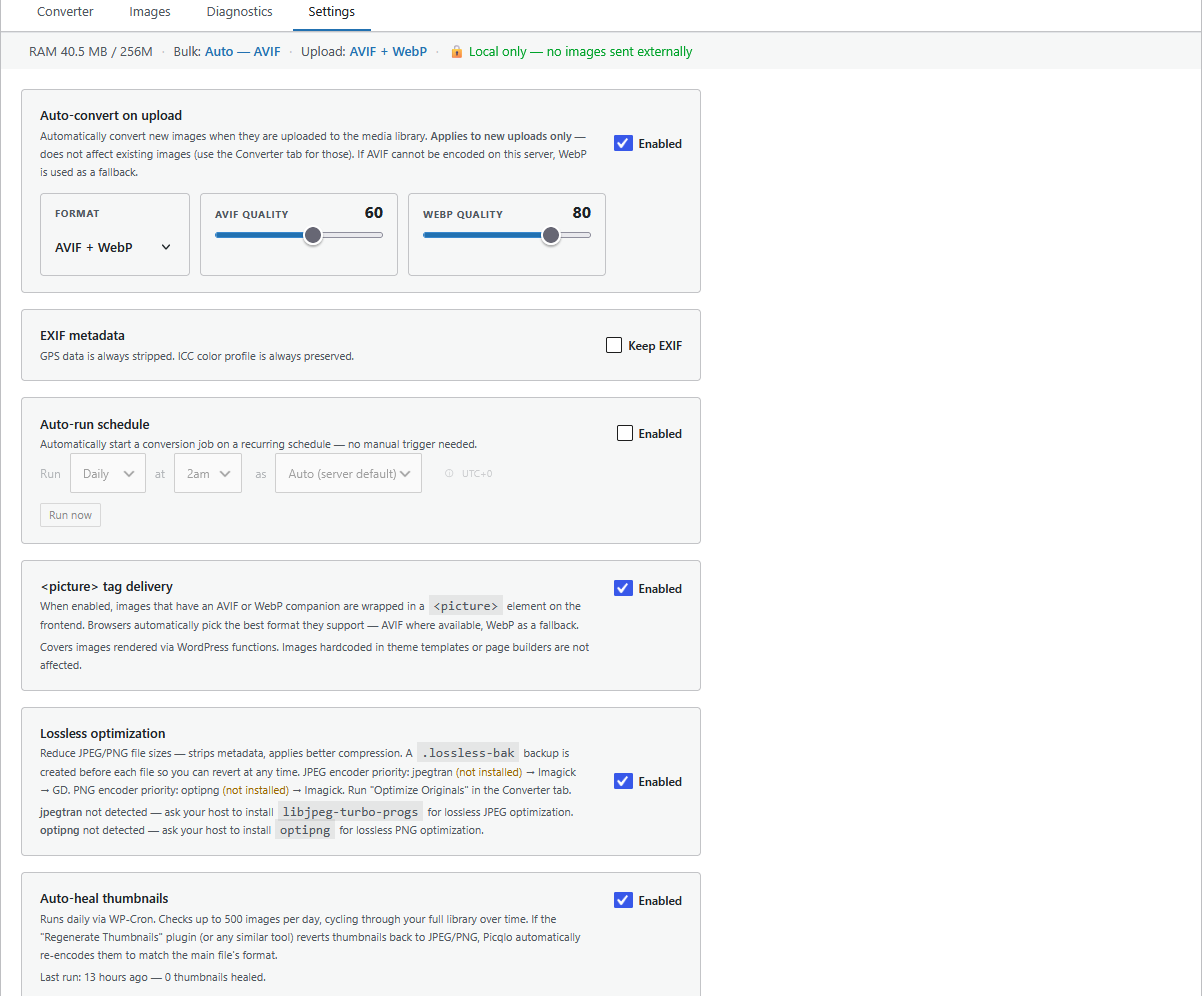
- Improved: Settings tab scheduled-conversion card now shows “WP-Cron available” instead of the misleading “Active” label; “Running…” and “Run now” are suppressed when auto-run is disabled
7.2
- Fixed: nonce verification now precedes capability check in all AJAX handlers
- Fixed: script handle for activation notice registered with empty string source instead of boolean false (Plugin Check compatibility)
7.1
- Fixed: Diagnostics tab incorrectly reported Apache server-side delivery as inactive even when rewrite rules were fully in place
- Fixed: reconverting an image that was already converted (re-encode path) could incorrectly delete the restored companion’s post meta when output was larger than source, causing the image to appear as unconverted and be re-queued indefinitely
- Fixed: a permission race on the source file between file_exists() and filesize() could coerce filesize() false to 0, discarding every successfully encoded companion as “larger than source”
7.0
- Fixed: progress bar now advances in real-time during a batch (previously it only updated between batches, appearing stuck while the log streamed live results)
- Fixed: progress bar and indicators now reset correctly when a background cron job finishes
- Fixed: inline style and script in admin now use wp_add_inline_style() and wp_add_inline_script() as required
- Fixed: dashboard widget now restricted to manage_options users
- Removed: load_plugin_textdomain() call — translations auto-loaded by WordPress for hosted plugins