

外掛說明
Enable commenting on your posts via Twitter.
Posts will get a “Discuss on Twitter” button, which will prompt visitors to reply to the original tweet about the post, as well as a “View Discussions” button which will link to existing tweets about the post.
Each new post will be auto-tweeted (requires the WP to Twitter plugin and a Twitter Developer account).
螢幕擷圖

Discuss on Twitter button, including Twitter reply pop-up 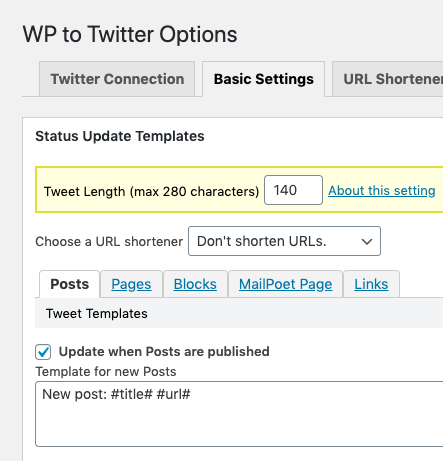
Basic settings for WP to Twitter, ensuring that “Update when Posts are published” is checked 
Individual post settings for WP to Twitter, showing the option to “Tweet” or “Don’t Tweet” when a single post is published
安裝方式
Simple Installation
The simplest way to start is to install and activate this plugin, which will enable a “View Discussions on Twitter” button as a template tag.
Include the following template code where you would like the “View Discussions on Twitter” button to appear (single.php or similar):
<?php if (function_exists('discuss_on_twitter_button')) { discuss_on_twitter_button(); } ?>
Inserting this button tag will link to a Twitter search looking for the URL of your post.
Note: the Simple installation does not enable auto-tweeting of new posts, or the prompting of direct replies to a tweet about the post. But it is the easiest way to get started.
Advanced Installation
The advanced installation enables auto-tweeting of new posts from your account and direct connection between the “Discuss on Twitter” button and the tweet about the post.
The advanced installation builds upon the awesome WP to Twitter plugin by Joseph C. Dolson.
After completing the steps for Simple Installation, above, do the following:
-
Install and activate the WP to Twitter plugin.
-
Set up your Twitter Developer account and create a new app for your site. This may require waiting for approval from Twitter if you are setting up your developer account for the first time.
-
In the WP to Twitter settings under “Twitter Connection” configure your API keys and secrets, as per the WP to Twitter documentation.
In the WP to Twitter settings under “Basic Settings”, ensure that “Update when Posts are published” is checked. This will ensure that a new tweet is posted to your timeline when you publish a post. (see screenshots)
In the WordPress create/edit post screen, you’ll notice a new sidebar menu called “WP to Twitter”. This includes an option to “Tweet” or “Don’t Tweet” when a new post is published. (see screenshots)
For new posts, where tweets are created upon publishing, the “Discuss on Twitter” button will tee-up a reply to the original tweet and the “View Discussions” button will link to the tweet and its replies.
For older posts which do not have a tweet associated with them, the “Discuss on Twitter” button will @mention your account, including the link to the post, and the “View Discussions” button will link to a search for mentions of your post by URL.
使用者評論


參與者及開發者

變更記錄
0.1
- Initial release
0.2
- Refine behavior of buttons and tighten styles. More clearly separate ‘basic installation’ from ‘advanced installation’.
0.3
- Refine behavior of “discuss” button to go directly to tweet rather than to search, if there is a canonical tweet.