
外掛說明
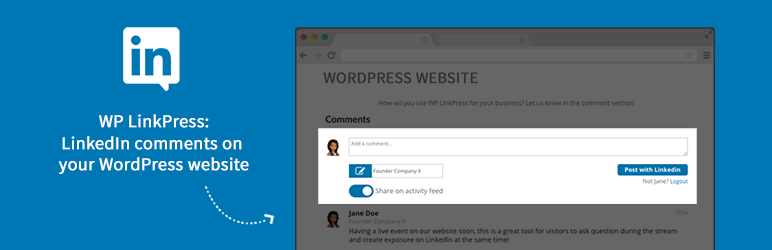
Place comments with a LinkedIn profile on a WordPress website.
Adjust the Job title and choose to share the comment on the LinkedIn feed before placing the comment.
You can use the LinkedIn comment section on any page or post, by activating the feature on the page/post settings. It’s also possible to use a shortcode anywhere you like to show the LinkedIn comment section on your WordPress website.
How it works:
Live DEMO: Click here for WP LinkPress DEMO
Features
- Login and comment with LinkedIn profile
- Enable WP LinkPress on any single page or post
- Insert WP LinkPress section anywhere with shortcode
PRO Features
- Add and show job description with comment (Pro version)
- Respond on comments (Pro version)
- Tag other users in the comment (Pro version)
- Comments moderation tool (hide or delete comment) (Pro version)
- Contact moderation tool (list name, job title, email and export to CSV or XLS file) (Pro version)
- Enable WP LinkPress sitewide for any (custom) post type (Pro version)
- Email notifications for admin (Pro version)
- Email notifications for commentor (Pro version)
For more guides, information & documentation please go to our website: www.wplinkpress.com
螢幕擷圖

WordPress website view 
Comment shared on LinkedIn view 
Moderation of comments view
安裝方式
For full documentation, please check https://wplinkpress.com/documentation/
After activating the plugin, it’s time to connect your website with LinkedIn.
To do this we need to create a development app. Please go to the following link to create an app on Linkedin:
Go to: https://www.linkedin.com/developers/apps
Click on “Create App”
Make sure the name of your app is recognisable for your website visitors. They will be asked to authorize it when logging in with their LinkedIn account to place a comment. It’s recommended to give the app the same name as your website.
Insert all the asked credentials, and link the app to your company page on LinkedIn. If you don’t have a company page yet, then you will need to create one (it doesn’t matter if you don’t use the company page).
As soon as the developer app is created, copy/paste the “Client ID” & “Client secret” to the settings page of WP LinkPress. You can find these fields under the “Authorize” tab on the backend of your WordPress admin.
After activating the plugin, a new WordPress page is automatically generated. This will be the ‘redirect url’ needed for this plugin to authorize with LinkedIn.
You can find a link to the “redirect url” on the settings page also. Copy the redirect url from the settings page, and add it to the redirect url settings on the oauth page of your Linkedin app.
When finished, save the adjustments on the settings page of WordPress and your new LinkedIn app will be connected to your website.
There are two ways to activate the LinkedIn comment section on your website.
In a post or page you can add the shortcode [wplinkpress_comments] on the desired place where you want the section to appear.
You can also activate LinkedIn comments with the metabox below your editor. The WP LinkPress comment section will be shown on the bottom of that page/post then.
For full documentation, please check https://wplinkpress.com/documentation/
使用者評論
這個外掛目前沒有任何使用者評論。
參與者及開發者


變更記錄
1.1
Fixed profile images breaking, now saving on website
1.0
Initial stable release which integrates LinkedIn comments on WordPress websites.