
外掛說明
Advanced Media Offloader 會自動將您的 WordPress 媒體庫移至雲端儲存空間 — Amazon S3、Cloudflare R2、DigitalOcean Spaces、Backblaze B2、Wasabi、MinIO,或任何 S3 相容服務 — 並從該處提供您的檔案。
您的伺服器保持輕量、頁面載入更快,而且不需要碰現有內容:每個媒體 URL 都會自動重寫。設定約需 5 分鐘,不需要寫程式碼。
為什麼要將 WordPress 媒體移轉至雲端?
- 降低主機成本 — 不再只是為了儲存圖片和影片而升級主機方案。雲端儲存空間每 GB 成本低得多。
- 加快網站速度 — 從雲端儲存空間或接近訪客的 CDN 提供媒體,而不是從您的網頁伺服器提供。
- 更輕量、更快速的備份 — 媒體放在雲端後,您的網站備份大小會大幅縮小。
- 內容零變更 — URL 會即時重寫;文章、頁面與商品會和先前一樣繼續運作。
- 掌握控制權 — 保留本機副本、智慧清理,或完全移至雲端。保留政策由您選擇。
支援的雲端儲存服務商
- Amazon S3 — 業界標準物件儲存服務
- Cloudflare R2 — 零出口費用的 S3 相容儲存空間
- DigitalOcean Spaces — DigitalOcean 提供的簡易物件儲存空間
- Backblaze B2 — 價格可預期的平價 S3 相容儲存空間
- Wasabi — 價格可預期的熱雲端儲存空間
- MinIO — 任何 S3 相容儲存空間(MinIO、OVHcloud Object Storage、Scaleway、Linode、Vultr、IBM COS 等)
不確定該選哪個服務商嗎?請查看我們的雲端儲存空間價格比較,了解實際成本拆解。
運作方式
- 安裝並啟用外掛,然後在 WordPress 管理後台開啟 媒體雲端移轉。
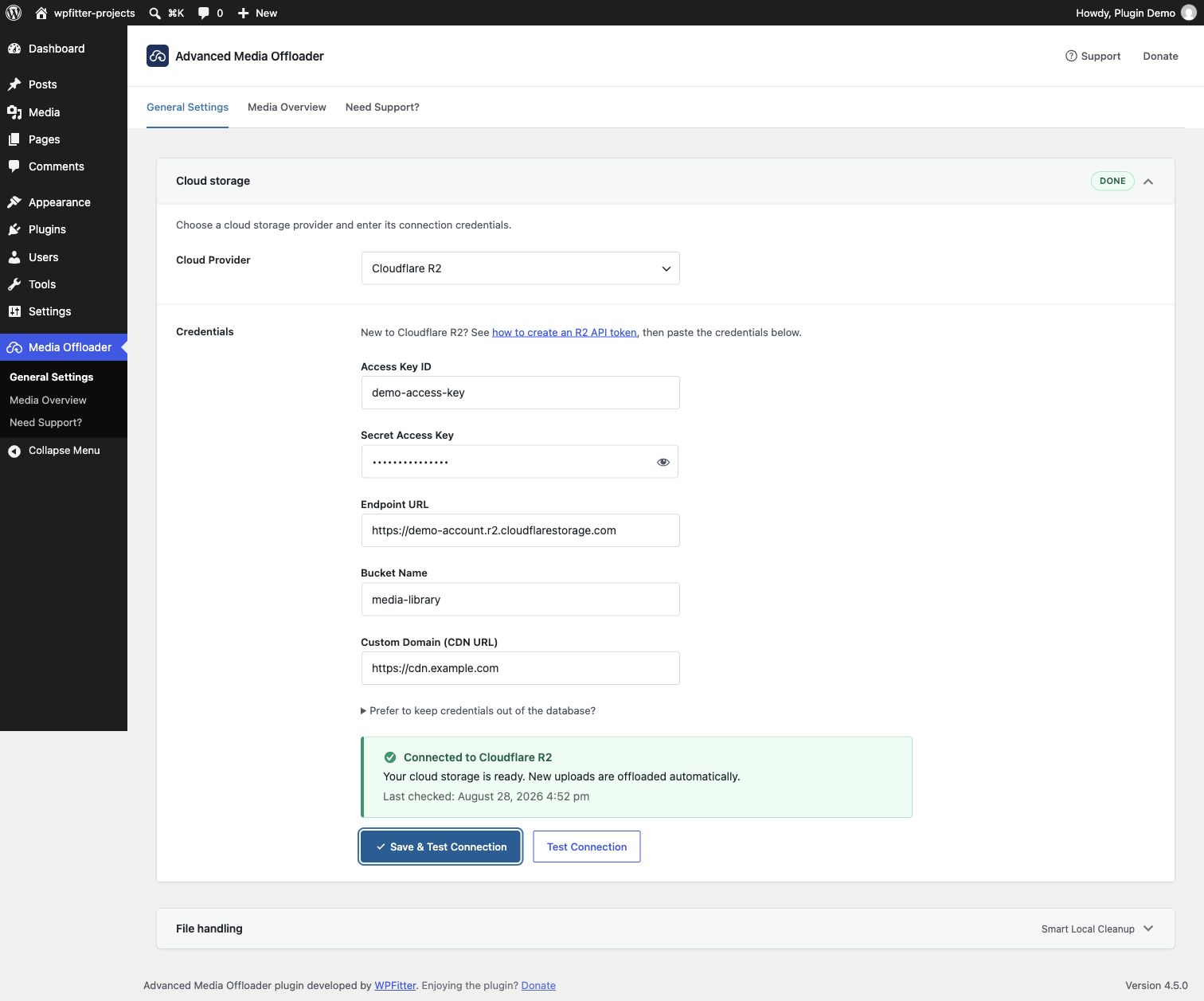
- 連接您的雲端儲存空間 — 選擇服務商、輸入其認證資訊,然後點選 儲存並測試連線。
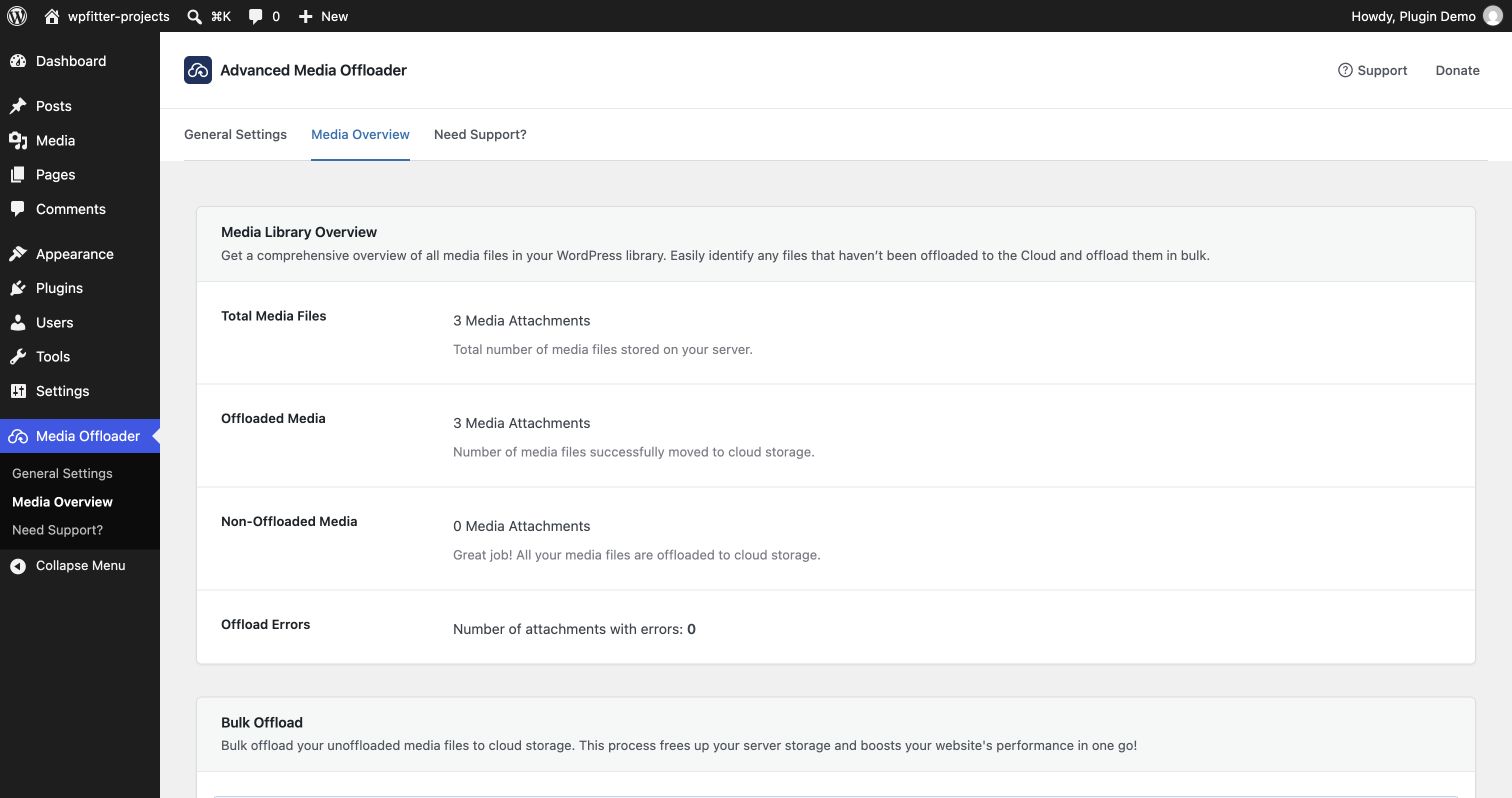
- 移轉至雲端 — 新上傳項目會自動移至雲端。可從媒體概覽頁面一鍵移動現有檔案。
就這樣。大多數網站約 5 分鐘即可完成設定。
功能
- 自動移轉至雲端 — 每個新上傳項目都會直接進入您的雲端儲存空間。
- 批次移轉現有媒體至雲端 — 從媒體概覽頁面移轉目前的媒體庫,或使用 WP-CLI(
wp advmo offload)進行不限數量、可寫成指令碼的移轉。(深入了解) - 支援 AI 助理和自動化工具 — 透過 WordPress Abilities API,使用 AI 助理、指令碼或 REST API 檢查設定、找出移轉失敗的檔案並執行雲端移轉。
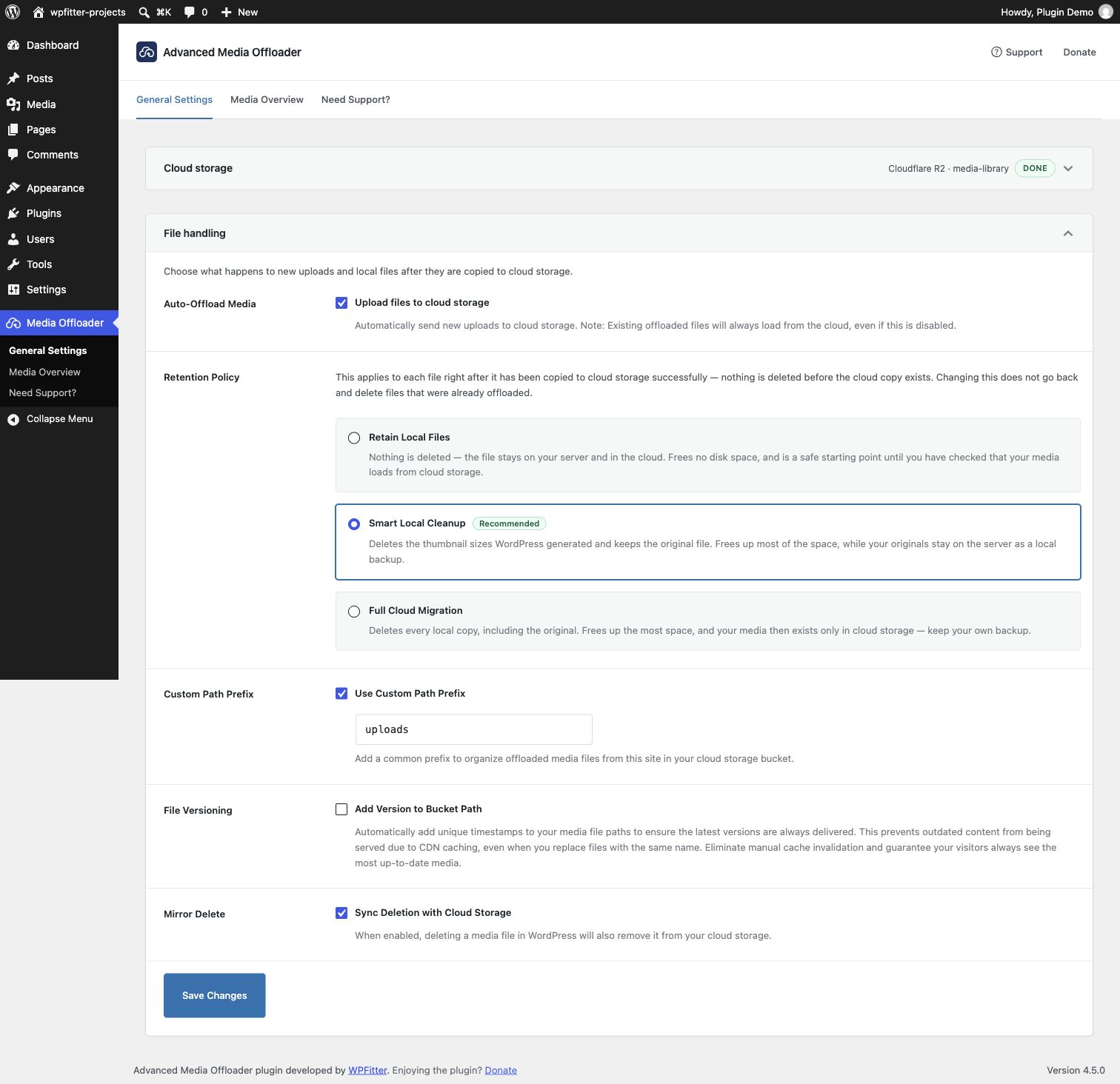
- 彈性保留政策 — 保留本機副本(保留本機檔案)、釋放空間同時保留原始檔作為備份(智慧清理本機檔案),或移除所有本機檔案(完整移轉至雲端)。(深入了解)
- 智慧 URL 重寫 — 所有媒體 URL(包括每個縮圖尺寸與 srcset)都會自動從雲端提供。
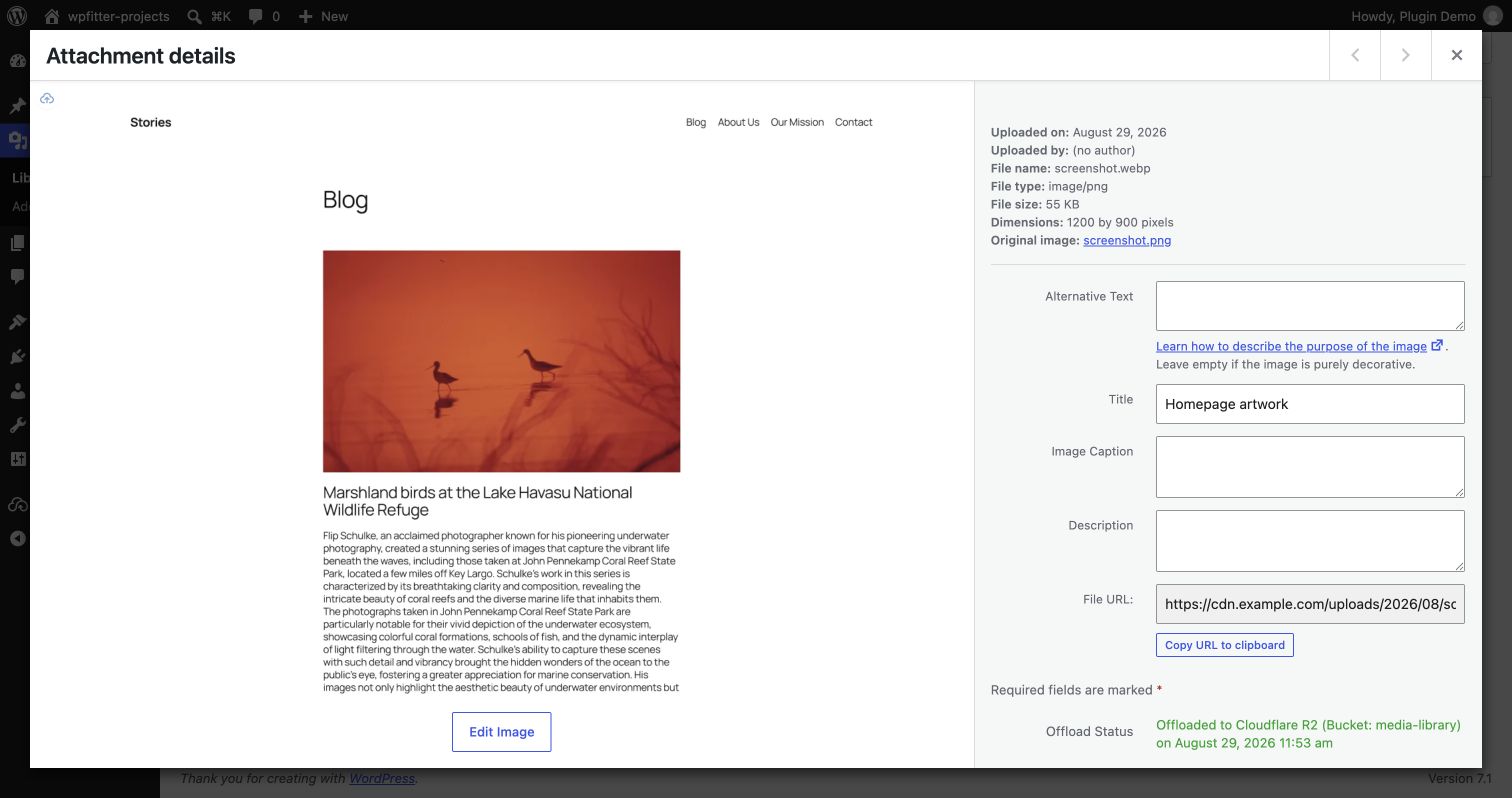
- 一眼查看雲端移轉狀態 — 媒體庫中的雲端徽章、雲端移轉狀態篩選器,以及每個檔案的「立即移轉至雲端」與「重試雲端移轉」按鈕。
- 同步刪除 — 當您在 WordPress 刪除檔案時,可選擇同時從雲端儲存空間移除。
- 自訂路徑前置字串 — 精準控制檔案位於 bucket 內的哪個位置。
- 檔案版本控制 — 在媒體路徑加入唯一時間戳記,以避免過期的 CDN 快取。
- 支援重新產生縮圖 — 與 WP-CLI
wp media regenerate及 Regenerate Thumbnails 外掛相容;重新產生的縮圖會自動移轉至雲端。完整移轉至雲端會暫時還原雲端來源、重新產生縮圖,並在完成後安全移除本機工作檔案。
可與您常用的外掛搭配運作
- WooCommerce — 商品圖片與 WooCommerce 專用圖片尺寸會正確移轉至雲端並顯示。
- 頁面編輯器 — Elementor、Beaver Builder、Visual Composer,以及任何使用標準 WordPress 媒體函式的編輯器。
- 圖片最佳化工具 — Modern Image Formats(建議使用)、Imagify 與 EWWW Image Optimizer。最佳化後的 WebP 與 AVIF 檔案會隨原始檔一起移轉至雲端。(深入了解)
- WP-CLI — 在部署指令碼與 Cron 工作中自動化雲端移轉。
使用 AI 助理管理媒體
Advanced Media Offloader 支援 WordPress Abilities API(WordPress 6.9 及更新版本)。AI 助理和自動化工具現在可以使用管理員帳號管理已移轉至雲端的媒體。
安裝免費的 MCP Adapter 外掛,並連線至支援 MCP(Model Context Protocol,AI 助理連線至應用程式的標準協定)的 AI 助理,例如 Claude 或 Cursor。接著只要提出要求:
- 「我的雲端儲存空間已連線嗎?」
- 「還有多少檔案尚未移轉至雲端?」
- 「哪些檔案移轉失敗?原因是什麼?」
- 「開始批次移轉並顯示進度。」
您的助理可以執行:
- 檢查設定、媒體數量及最近一次連線測試結果
- 查看特定檔案的雲端移轉狀態
- 列出移轉失敗的檔案
- 測試與雲端儲存空間的連線
- 移轉檔案或重新移轉檔案(每次最多 20 個)
- 開始、監控及取消批次移轉
助理一律使用您已儲存的服務商和設定。它無法變更設定,也不會取得您的存取金鑰。
開發者適用
Advanced Media Offloader 設計為可擴充:20 多個動作與篩選器掛鉤,可讓您控制哪些內容會移轉至雲端、移到哪裡,以及每個步驟前後會發生什麼事。
快速範例 — 略過大於 5MB 的檔案,不移轉至雲端:
add_filter('advmo_should_offload_attachment', function($should_offload, $attachment_id) {
    $file = get_attached_file($attachment_id);
    if ($file && filesize($file) > 5 * 1024 * 1024) {
        return false;
    }
    return $should_offload;
}, 10, 2);
WordPress Abilities API。此外掛在 advmo-media 類別中註冊 9 項能力:advmo/get-status、advmo/get-attachment-status、advmo/list-offload-errors、advmo/get-bulk-offload-status、advmo/test-connection、advmo/offload-attachments、advmo/reoffload-attachments、advmo/start-bulk-offload 和 advmo/cancel-bulk-offload。您可以透過 PHP、REST API(/wp-json/wp-abilities/v1/abilities/{name}/run)或任何 MCP 用戶端執行這些能力。
$result = wp_get_ability('advmo/get-attachment-status')
    ->execute(['attachment_ids' => [123, 456]]);
在底層,此外掛使用官方 AWS SDK for PHP,並以 PHP-Scoper 隔離命名空間,因此不會與同樣內含此 SDK 的其他外掛發生衝突。
Pro 版本即將推出
我們正在開發 Advanced Media Offloader Pro,將提供私有媒體檔案搭配安全、已驗證存取等進階功能。追蹤 wpfitter.com,即可第一時間得知推出訊息。
螢幕擷圖
安裝方式
設定約需 5 分鐘,且不需要變更程式碼。
- 從 外掛 安裝外掛 安裝此外掛(搜尋「Advanced Media Offloader」),或將外掛檔案上傳至
/wp-content/plugins/advanced-media-offloader/。 - 透過 WordPress 的「外掛」選單啟用此外掛。
- 前往管理選單中的 媒體雲端移轉,選擇您的雲端儲存服務商,並輸入其認證資訊。
- 點選 儲存並測試連線,以儲存並驗證您的認證資訊。
- 新的上傳項目現在會自動移轉至雲端。請從 媒體概覽 分頁將現有媒體移轉至雲端。
進階(選用):在 wp-config.php 中定義認證資訊
設定頁面是設定此外掛最快的方式 — 不需要寫程式碼。或者,您也可以使用下方範例,在 wp-config.php 中將認證資訊定義為常數。常數優先於管理後台中儲存的認證資訊,並會鎖定對應欄位。這能讓私密資訊不進入資料庫 — 對版本控管或多環境設定很有用。
注意:如果您未包含 https://,網域與端點網址會自動加上該前置字串,但為了清楚起見,建議一律包含完整 URL。
Amazon S3 設定
define('ADVMO_AWS_KEY', 'your-access-key');
define('ADVMO_AWS_SECRET', 'your-secret-key');
define('ADVMO_AWS_BUCKET', 'your-bucket-name');
define('ADVMO_AWS_REGION', 'your-bucket-region');
define('ADVMO_AWS_DOMAIN', 'your-domain-url');
define('ADVMO_CLOUDFLARE_R2_KEY', 'your-access-key');
define('ADVMO_CLOUDFLARE_R2_SECRET', 'your-secret-key');
define('ADVMO_CLOUDFLARE_R2_BUCKET', 'your-bucket-name');
define('ADVMO_CLOUDFLARE_R2_DOMAIN', 'your-domain-url');
define('ADVMO_CLOUDFLARE_R2_ENDPOINT', 'your-endpoint-url');
define('ADVMO_DOS_KEY', 'your-access-key');
define('ADVMO_DOS_SECRET', 'your-secret-key');
define('ADVMO_DOS_BUCKET', 'your-bucket-name');
define('ADVMO_DOS_DOMAIN', 'your-domain-url');
define('ADVMO_DOS_ENDPOINT', 'your-endpoint-url');
Backblaze B2 設定
define('ADVMO_BACKBLAZE_B2_KEY', 'your-application-key-id');
define('ADVMO_BACKBLAZE_B2_SECRET', 'your-application-key');
define('ADVMO_BACKBLAZE_B2_BUCKET', 'your-bucket-name');
define('ADVMO_BACKBLAZE_B2_REGION', 'your-bucket-region');
define('ADVMO_BACKBLAZE_B2_DOMAIN', 'your-domain-url');
define('ADVMO_BACKBLAZE_B2_ENDPOINT', 'your-endpoint-url');
Wasabi 設定
define('ADVMO_WASABI_KEY', 'your-access-key');
define('ADVMO_WASABI_SECRET', 'your-secret-key');
define('ADVMO_WASABI_BUCKET', 'your-bucket-name');
define('ADVMO_WASABI_REGION', 'your-bucket-region');
define('ADVMO_WASABI_DOMAIN', 'your-domain-url');
MinIO 設定
任何透過自訂端點支援 S3 API 的儲存空間都可使用此選項(例如 MinIO、OVHcloud Object Storage、Scaleway、Linode、Vultr、IBM COS)。如果您的服務商沒有單獨列出,請選取此選項。
define('ADVMO_MINIO_KEY', 'your-access-key');
define('ADVMO_MINIO_SECRET', 'your-secret-key');
define('ADVMO_MINIO_BUCKET', 'your-bucket-name');
define('ADVMO_MINIO_DOMAIN', 'your-domain-url');
define('ADVMO_MINIO_ENDPOINT', 'your-endpoint-url');
define('ADVMO_MINIO_PATH_STYLE_ENDPOINT', false); // Optional. Set to true if your MinIO server requires path-style URLs (most self-hosted MinIO setups). Default is false.
define('ADVMO_MINIO_REGION', 'your-bucket-region'); // Optional. Set your MinIO bucket region if needed. Default is 'us-east-1'.
常見問題集
-
Advanced Media Offloader 是免費的嗎?
-
可以。此處介紹的所有功能——自動移轉至雲端、批次移轉、WP-CLI、AI 助理支援及全部六家服務商——都完全免費。Pro 版本正在開發中,預計加入私密媒體檔案等額外功能。
-
支援哪些雲端儲存服務商?
-
支援 Amazon S3、Cloudflare R2、DigitalOcean Spaces、Backblaze B2、Wasabi 與 MinIO — 也可透過 MinIO 選項支援任何其他 S3 相容服務(OVHcloud Object Storage、Scaleway、Linode、Vultr、IBM COS 等)。其他服務商會依使用者需求加入。
-
伺服器上已有的媒體檔案會怎麼處理?
-
不會發生任何事,直到您決定執行。現有檔案會保持不變,直到您從媒體概覽頁面(或透過 WP-CLI)執行批次移轉至雲端。新上傳項目會依您的設定自動移轉至雲端。
-
移轉至雲端會讓我的網站更快嗎?
-
從雲端儲存空間提供媒體可減輕網頁伺服器負載,將 bucket 搭配 CDN 則能從接近訪客的位置傳送檔案。媒體量大的網站通常會看到最明顯的改善。
-
它能與 WooCommerce、Elementor 和其他頁面編輯器搭配使用嗎?
-
是。URL 重寫會掛入 WordPress 核心媒體函式(
wp_get_attachment_url及相關篩選器),因此 WooCommerce、Elementor、Beaver Builder,以及大多數佈景主題與外掛都不需任何變更即可運作。 -
我可以使用 AI 助理管理已移轉至雲端的媒體嗎?
-
可以。使用 WordPress 6.9 或更新版本時,外掛支援 WordPress Abilities API。安裝免費的 MCP Adapter 外掛,並連線至支援 MCP 的 AI 助理,例如 Claude 或 Cursor。接著,您可以請它檢查設定、找出移轉失敗的檔案、測試連線、移轉檔案或執行批次移轉。您不必在外掛設定中啟用任何功能。閱讀設定指南。
-
讓 AI 助理使用此外掛安全嗎?
-
這些操作僅限管理員使用。助理會使用您已儲存的服務商和設定。它無法變更設定或刪除媒體檔案,也不會取得您的存取金鑰。雲端移轉會遵循您的保留政策,與「立即移轉至雲端」按鈕相同。使用「智慧清理本機檔案」或「完整移轉至雲端」時,檔案上傳後會移除本機副本。如果您想保留檔案,請選擇「保留本機檔案」。
-
使用這些功能需要 AI 助理嗎?
-
不用。AI 助理能做的大多數事,在外掛中都已經能輕鬆使用:
- 測試連線 — 前往設定頁面,按一下「儲存並測試連線」。
- 查看進度並執行批次移轉 — 開啟「媒體概覽」頁面即可開始或取消移轉。
- 找出移轉失敗的檔案 — 在媒體庫中查看雲端徽章並使用雲端移轉狀態篩選器,或前往「媒體概覽」頁面,按一下「下載錯誤 CSV」。
- 移轉單一檔案或重試 — 在媒體庫中使用「立即移轉至雲端」和「重試雲端移轉」按鈕。
開發者也可以透過 PHP 或 REST API 執行這些操作、使用 WP-CLI 大量移轉檔案(
wp advmo offload),並利用 20 多個動作與篩選器 Hook 調整雲端移轉方式。請參閱「開發者專區」。 -
我可以保留檔案的本機副本嗎?
-
是 — 這是預設值。您可以在三種保留政策之間選擇:保留本機檔案(保留所有項目)、智慧清理本機檔案(釋放空間但保留原始檔作為備份),或 完整移轉至雲端(移除所有本機副本)。
-
批次移轉至雲端有限制嗎?
-
瀏覽器式批次移轉至雲端每批最多處理 50 個檔案(上限 150 MB)— 只要再次執行即可處理下一批。對於大型媒體庫,WP-CLI 命令
wp advmo offload沒有限制,並支援--limit和--skip-failed等選項。 -
我可以復原雲端移轉並回到本機檔案嗎?
-
如果您使用「保留本機檔案」政策,可以 — 停用外掛後,您的媒體會再次從本機提供。若使用完整移轉至雲端,您需要先重新下載檔案,因此請在有把握前保留本機副本。
-
圖片尺寸與縮圖如何處理?
-
所有產生的圖片尺寸都會隨原始檔一起移轉至雲端,且 URL 重寫會涵蓋每個尺寸與 srcset 屬性 — 回應式圖片會如預期繼續運作。
-
它能與 WebP/AVIF 圖片最佳化外掛搭配使用嗎?
-
是 — 完整支援 Modern Image Formats(建議使用)、Imagify 與 EWWW Image Optimizer。最佳化後的 WebP 與 AVIF 版本會隨原始檔自動移轉至雲端。
-
它支援具備存取控制的私有檔案嗎?
-
尚未支援 — 免費版支援可公開存取的檔案。具備安全、已驗證存取功能的私有媒體,已規劃在即將推出的 Pro 版本中提供。
-
如果我從 WordPress 媒體庫刪除媒體檔案,會發生什麼事?
-
啟用 同步刪除 後,對應的雲端檔案會自動移除。否則,檔案會保留在雲端儲存空間中,可能產生孤立物件。
-
建議的 bucket 設定是什麼?
-
為了獲得最佳效能:
- 啟用 CORS 設定
- 設定適當的公開讀取權限
- 設定最接近受眾的區域
- 考慮使用 CDN 進行全球分發
-
我要如何為 bucket 設定公開存取?
-
根據預設,此外掛會在上傳的物件上設定
public-readACL。不過,部分服務商不支援 ACL,而 AWS S3 自 2023 年 4 月起也在新的 bucket 預設停用 ACL。您應該使用服務商的 bucket 政策設定 bucket 層級的公開存取。如果您遇到
AccessControlListNotSupported錯誤,或需要停用 ACL,請將以下程式碼加入佈景主題的functions.php或自訂外掛:add_filter('advmo_object_acl', '__return_false'); -
我要如何偵錯檔案雲端移轉問題?
-
查看媒體概覽頁面 — 其中會顯示雲端移轉錯誤,並可讓您下載失敗附件的 CSV。外掛也會將錯誤記錄到附件中繼資料,您也可以啟用 WordPress 偵錯記錄以取得更多詳細資料。
使用者評論


參與者及開發者
以下人員參與了開源軟體〈Advanced Media Offloader – 將媒體移轉至 Amazon S3、Cloudflare R2、DigitalOcean Spaces 及更多服務〉的開發相關工作。
參與者


變更記錄
4.7.3
- Fixed: AI assistants connected through the WordPress MCP Adapter could not check the plugin status or bulk offload progress, test the cloud connection, or start a bulk offload. These requests now work.
4.7.2
- Fixed: Version 4.7.1 could cause a fatal error and prevent access to the site and WordPress admin when WooCommerce or another plugin using Action Scheduler was active.
4.7.1
- Fixed: Offloading existing images with Imagify or EWWW could leave local copies behind under Smart Local Cleanup or Full Cloud Migration. Cleanup now follows the selected policy once the optimizer is idle.
- Fixed: Optimized images and their WebP/AVIF versions could be missed when optimization finished during an offload, or when EWWW WebP generation was off. The current files are now uploaded before local cleanup.
- Fixed: Failed uploads or local cleanup after optimization could stop retrying after 24 hours. Failed attempts now remain pending so cleanup can finish after the problem is resolved.
This update applies to future offloads. Images already offloaded with local files left behind are not cleaned up automatically.
Optimize existing images before offloading if you want optimized cloud copies. When no optimizer job is queued or running, Smart Local Cleanup or Full Cloud Migration can remove local files before a future optimization.
Developer note: Custom cleanup filters should also handle the new existing_media context for existing-library offloads.
4.7.0
- Added: Support for the WordPress Abilities API (WordPress 6.9 and later). AI assistants, scripts, and other tools can now check media status, test the cloud connection, offload or re-offload files, and start or cancel bulk offloads. Only administrators can use these actions. Offloading follows your retention policy.
- Improved: Bulk offloads are more reliable. Starting a bulk offload again joins the run already in progress, interrupted work picks up where it stopped, and the progress bar and Cancel button stay correct after you reload the page.
- Improved: An upload and the cleanup of local copies can no longer run on the same file at the same time. This keeps a file from being removed from your server while it is still uploading.
- Fixed: On multisite, all sites shared one bulk offload queue. Each site now has its own queue.
- Fixed: Themes and plugins could not get the attachment ID of an offloaded file from its Custom Domain URL (
attachment_url_to_postid()returned 0). They now get the correct ID. - Fixed: When you re-offloaded a file, failed uploads of its Imagify or EWWW WebP/AVIF versions were not reported. They now show as errors, so you can find and retry them.
- Fixed: Files stored at the top level of a bucket (not in a folder) could not be re-offloaded. They can now be re-offloaded without moving them into a folder.
4.6.0
- Fixed: Images could break when no Custom Domain was set and Smart Local Cleanup or Full Cloud Migration was on. Local files were deleted while the site still served them. Now they are kept until you set a Custom Domain.
- Fixed: A saved cloud provider that is no longer available (for example after removing the add-on that added it) took the whole site down. The plugin now keeps running and the settings page tells you to choose a provider again.
- Fixed: SVG files from plugins like SVG Support could break. On Amazon S3 new ones were stored under the wrong key, and on Cloudflare R2 and MinIO a cloud-only SVG could not be read and was requested again on every page load, which slowed pages down.
- Fixed: Lazy-load placeholders in images (for example Avada’s) were turned into broken cloud URLs.
- Added: Developers can extend the plugin with the new
advmo_register_providersandadvmo_loadedactions, and storage providers added with theadvmo_cloud_providersfilter can now be selected. The plugin now starts onplugins_loaded. Code that usesadvmo()->containerkeeps working.
4.5.2
- Security: Restricted individual media offloading to users who can edit the selected attachment.
- Improved: The production package now passes Plugin Check without errors.
- Fixed: Resolved thumbnail regeneration errors now clear after a successful retry, while unrelated errors stay visible.
4.5.1
- Fixed: Sites that load another Composer-managed copy of Guzzle before Advanced Media Offloader no longer miss the plugin’s isolated Guzzle functions or fail while creating a cloud client.
- Fixed: Cloud storage validation for
wp advmo offloadnow starts only when that command runs, so command discovery and other WP-CLI operations remain safe when the plugin is not configured. - Fixed: Imagify and EWWW Image Optimizer can load alongside Advanced Media Offloader without duplicate third-party function declarations.
- Fixed: Existing WebP and AVIF files created by Imagify and other supported image optimizers are now included when an image is offloaded for the first time, including bulk and WP-CLI offloads. If a sidecar upload fails, the attachment is not marked as offloaded and local files are kept safely.
- Fixed: Cloud-only SVG files now use a stable local cache path that preserves the original filename and
.svgextension, preventing failures in WordPress and page builders that require a real local file.
4.5.0
- Added: A clearer settings experience with two focused, collapsible sections: Cloud storage and File handling. Media waiting to be offloaded now appears in a visible banner above the settings, with a direct link to Media Overview.
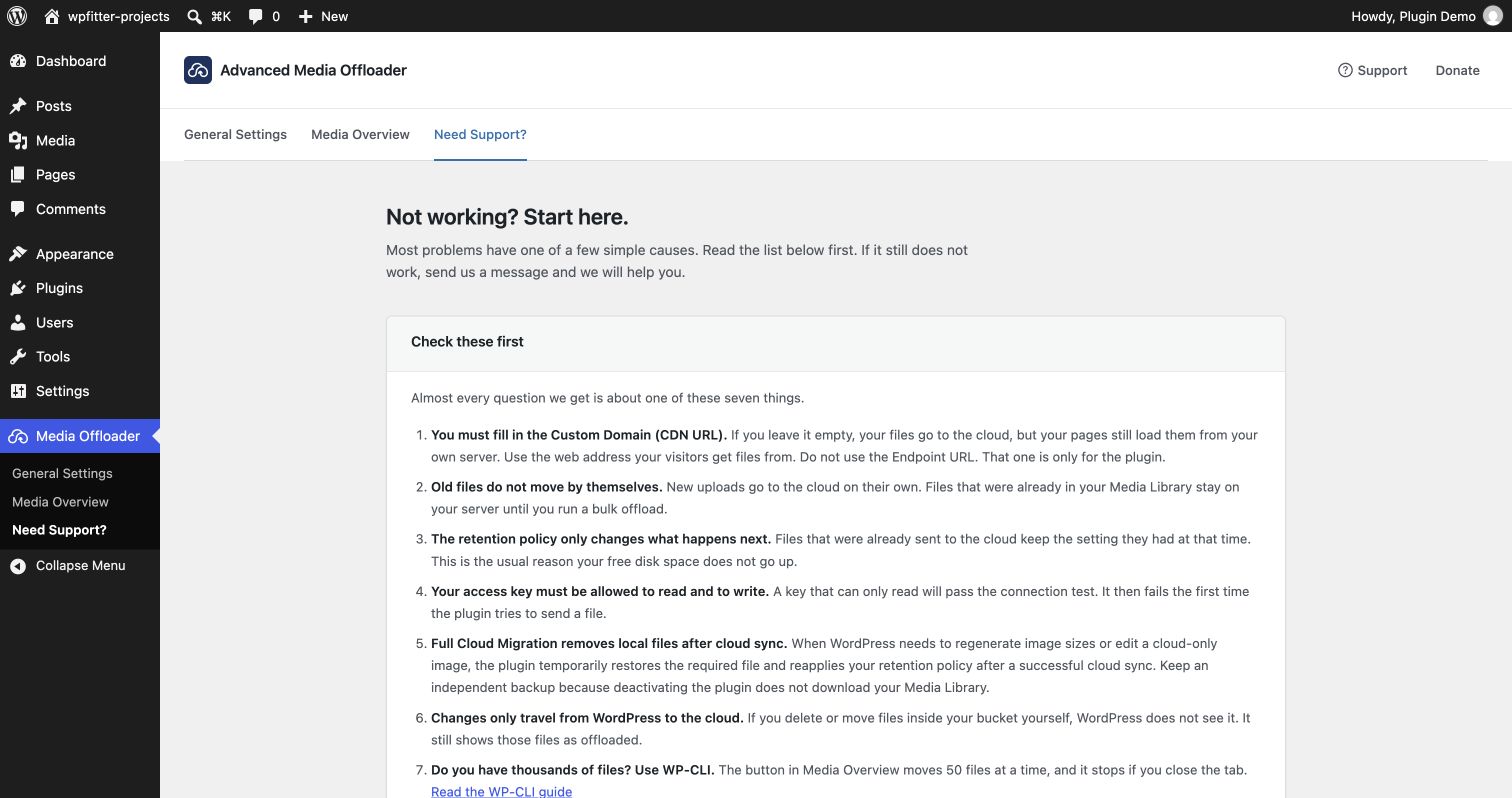
- Added: A “Need Support?” page with the checks that solve most problems, links to the support forum and our contact page, and a one-click system report to paste into your message. The report contains no keys, passwords or bucket names, so it is safe to post in public.
- Added: Save & Test Connection now saves your credentials, runs the connection test, and shows the result in one action.
- Added: Every provider now links to its own guide for creating credentials, and a ready-to-copy
wp-config.phpsnippet sits under the credential fields for anyone who prefers to keep credentials out of the database. - Improved: Connection errors now say what went wrong and what to check — a secret key that does not match its access key, a bucket in another region, a server clock that is out of sync, an endpoint that cannot be reached — instead of a single “Connection failed!”.
- Improved: The connection result stays on screen instead of disappearing after a few seconds, and is remembered between visits, so the settings page no longer contacts your storage provider every time it loads.
- Improved: Settings sections can be collapsed to keep the page short. A closed section still shows a useful summary, such as the selected provider and bucket or the retention policy.
- Improved: The retention policy options now say exactly what is deleted, what is kept, and when it happens. Smart Local Cleanup is now the recommended option, and the whole option box can be clicked, not only its title.
- Improved: Cloud credentials and file-handling settings now have separate save actions, so saving a retention or offload setting no longer runs another connection test.
- Fixed: The settings and Media Overview pages were hard to use on phones and tablets. Table rows spilled outside their card, and the tab menu could not be tapped at all.
- Fixed: The show/hide button in the Secret Access Key field was not centred in the field, and its icon could appear cut off.
- Fixed: Checkboxes and radio buttons were larger than intended on small screens, and the two did not match each other.
- Fixed: Pressing Save before choosing a cloud provider reported “Invalid Cloud Provider!”. It now asks you to choose one.
- Fixed: Full Cloud Migration could trigger repeated missing-file warnings when WordPress checked image sub-sizes after the local original had been removed.
- Improved: Regenerated thumbnails now stay synchronized with cloud storage.
- Added: Full Cloud Migration can now regenerate cloud-only images safely.
- Fixed: Image edits, Restore Original backups, and optimizer-generated formats are preserved.
- Fixed: Failed or interrupted operations keep local files and can recover safely.
4.4.4
- Fixed: Conflict with other plugins or themes that also use the AWS PHP SDK. The plugin’s SDK is now fully isolated and no longer shares the unprefixed
Aws\S3\Exception\S3Exceptionclass name. - Fixed: With EWWW Image Optimizer in background mode, deleting a media item while its optimization job was still queued caused a fatal error that permanently blocked EWWW’s queue — new uploads no longer got their WebP versions generated or offloaded. Deleted attachments are now skipped cleanly and the queue keeps processing.
- Fixed: The bulk offload stall-check cron (
advmo_check_stalled_processes) no longer runs every 15 minutes when idle. It is now scheduled only while a bulk offload job is active and cleared when the job completes, is cancelled, or recovers from a stall. - Fixed: The bulk offload background healthcheck cron (
advmo_bulk_offload_media_process_cron) could remain scheduled after a successful bulk offload. It is now cleared reliably when the job finishes or the queue is empty. - Improved: Small fixes and improvements
4.4.3
- Fixed: With Object Versioning enabled, newly offloaded images could appear broken on your site. The files were uploaded correctly, but the saved location sometimes didn’t match — so images failed to load. The correct location is now always saved, so your images display properly.
- Fixed: Offloading an existing image that is stored directly in the uploads folder could add an extra
/./to its URL — for examplehttps://cdn.example.com/./image.png— so the image failed to load on some CDNs. The URL is now correct. - Fixed: Repeated PHP warnings and possible high server load on pages with images whose saved metadata had a broken size entry.
4.4.2
- Added: Compatibility with WordPress 7.0
- Fixed: Editing an image (crop, rotate, or scale) could fail to upload to your cloud storage and show an error. Edited images now offload reliably.
- Fixed: With Full Cloud Migration active alongside an image optimizer (such as Imagify or EWWW), editing an image could leave the edited copies — including their WebP/AVIF versions — on your server. They are now removed according to your retention policy.
- Fixed: With EWWW Image Optimizer in background mode, newly offloaded images could be left on your server instead of being removed under your retention policy. They are now cleaned up reliably.
- Fixed: Deleting an image you had previously edited could leave leftover WebP/AVIF copies behind in your cloud storage. These are now removed too — covering Modern Image Formats, Imagify, and EWWW Image Optimizer.
4.4.1
- Fixed: Custom/intermediate image sizes in src attribute being replaced with the full-size URL when using page builders like Elementor
4.4.0
- Added: Imagify compatibility for WebP/AVIF offloading
- Added: EWWW Image Optimizer compatibility
4.3.2
- Fixed: Visual Composer compatibility – resolved PHP TypeError caused by strict type hints on admin_enqueue_scripts callbacks
4.3.1
- Added:
advmo_object_aclfilter to customize or disable object-level ACL permissions
4.3.0
- Added: New visual badges in Media Library show offload status at a glance. Cloud icon for offloaded files, warning icon for failed uploads.
- Added: Visual “Deleting…” loading indicator with spinner in Media Library attachment modal when deleting offloaded media
- Added: Offload status filter dropdown in Media Library for quick filtering by offload state.
- Improved: Optimized cloud deletion performance using batched deleteObjects API (up to 1000 keys per request) for faster deletion of attachments with multiple sizes
- Fixed: MinIO “Use Path-Style Endpoint” now correctly respects boolean
wp-config.phpconstants (e.g.define('ADVMO_MINIO_PATH_STYLE_ENDPOINT', true);).
4.2.3
- Fixed: TypeError when uploading non-image files (SVG, ZIP, PDF)
4.2.2
- Added: Compatibility with WordPress 6.9
- Added: Full Compatibility with Modern Image Formats
- Fixed: Minor changes and improvements
4.2.1
- Fix: Checkbox states for credential fields now properly persist when unchecked
- Fix: Deletion failure when WordPress year/month folders are disabled
4.2.0
- New: Added compatibility for thumbnail regeneration with WP-CLI
wp media regeneratecommand and the Regenerate Thumbnails plugin. Regenerated thumbnails now automatically offload to cloud storage. Note: This feature does not work with Full Cloud Migration retention policy. - New: Added the ability to configure cloud provider credentials through the WordPress admin settings page while maintaining backward compatibility with wp-config.php constants. Constants take priority and disable corresponding fields when defined.
- New: Added setting to toggle automatic cloud offloading for new uploads
- New: Added customizable Name field S3-compatible providers to identify specific storage services (e.g., MinIO, OVHcloud, Scaleway). Default is “MinIO” with backward compatibility for existing installations.
- Fix: Minor changes and improvements
Earlier releases are documented in changelog.txt included with the plugin.